
To find a missing client in Lodgeit, follow these steps:
1. Search for the Client
You can search for a client using various methods:
Option 1: Top-Left Client Selector
- Locate the "Select a client to work on" dropdown in the top-left corner of the Lodgeit navigation bar.
- Click the downward-pointing arrow to open the search box.
- Start typing the client's name or relevant information (e.g., Director ID, TFN, phone number, or email address).
- Select the client from the filtered list.

Option 2: "Clients" Section
- Click on the "Clients" button in the top-right navigation bar.
- Use the search bar to type the client's name, Director ID, TFN, phone number, or email address.
- Refine your search using filters like Entity Type, Access Type, or Assignee.

2. Check Archived Clients
If the client does not appear in the active list, they might be archived:
- Navigate to the "Clients" section.
- Click on the "Archived" tab.
- Use the search bar to locate the client.

3. Verify Access Permissions
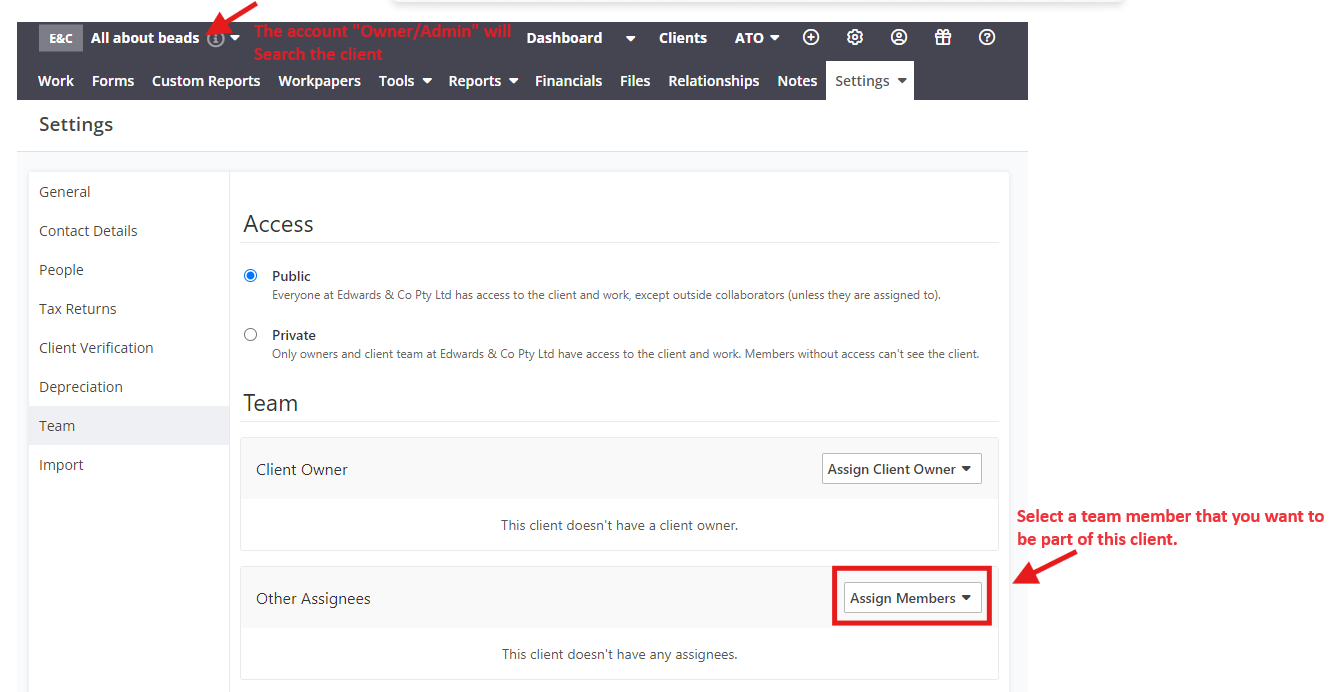
If you still cannot find the client, it might be in Private Mode, accessible only to the "Owner" or assigned team members. Follow these steps:
- Contact your Account Owner or Team Admin to ensure you have access to the client.
- Learn more about managing client access here: Manage CLIENT Access.
4. Check if you are accessing the correct Organization.
Via Gear wheel, press the dropdown menu, click on "Switch Organisation".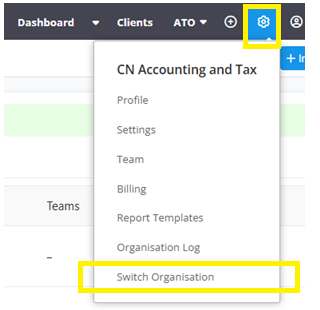
A list of all organisations associated with your account will appear. Click on the name of the organisation you wish to access.
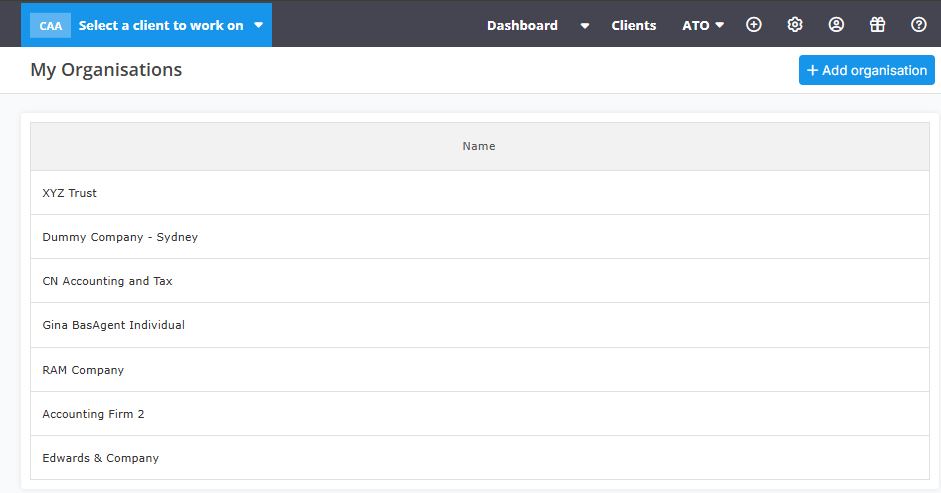 Image Description: Displays a list of multiple organisations under the "My Organisations" section. Learn more
If you still cannot locate the client, please provide more details , ie printscreen.