Use the Bulk Import feature to add new clients to Lodgeit or update existing client information. You can also assign clients to one or more teams during the import.
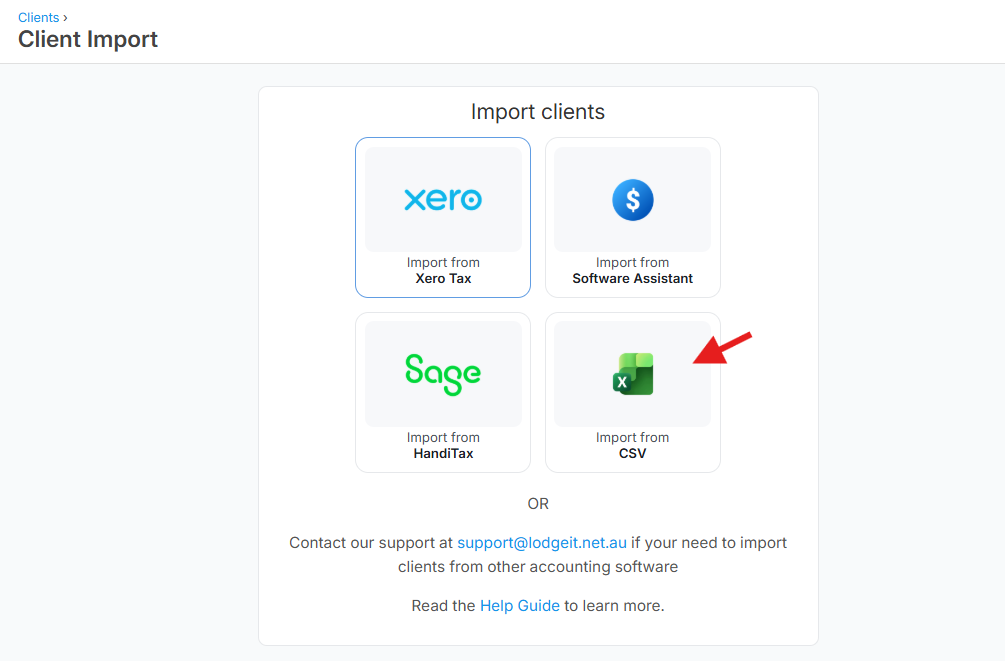
Before You Start
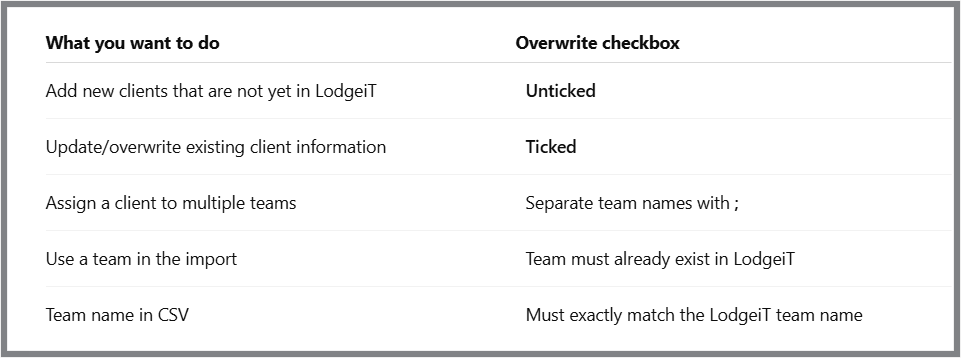
If you want to assign clients to teams during the import:
- The team must have "Owner" or "Admin" access. Learn more
- The team must already exist in Lodgeit before starting the import.
- The team name in your CSV file must exactly match the team name in Lodgeit.
- You can assign a client to multiple teams by separating each team name with a semicolon (;).
Example
In your CSV file, add a column called Team in the first row:

Important:
- Use a semicolon (
;) to separate multiple teams assigned to the same client. - You can use your existing CSV file and simply add the Team column to the first row, then enter the required team names for each client.
TABLE OF CONTENTS
To Import New Clients
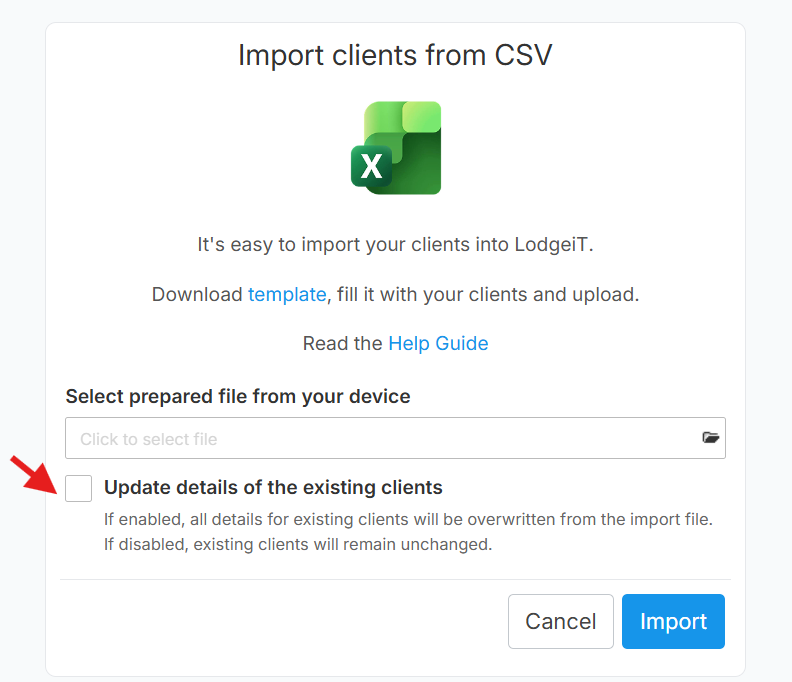
If the clients are not yet in your firm's Lodgeit client list:
- Prepare your existing CSV file.
- Add a Team column to the first row.
- Enter the exact team name(s) for each client.
- Make sure all teams listed in the CSV already exist in Lodgeit.
- Start a new import.
- Leave the Overwrite existing clients/data checkbox unticked.
- Complete the import.
This will add the new clients without overwriting existing client information.
To Update Existing Clients
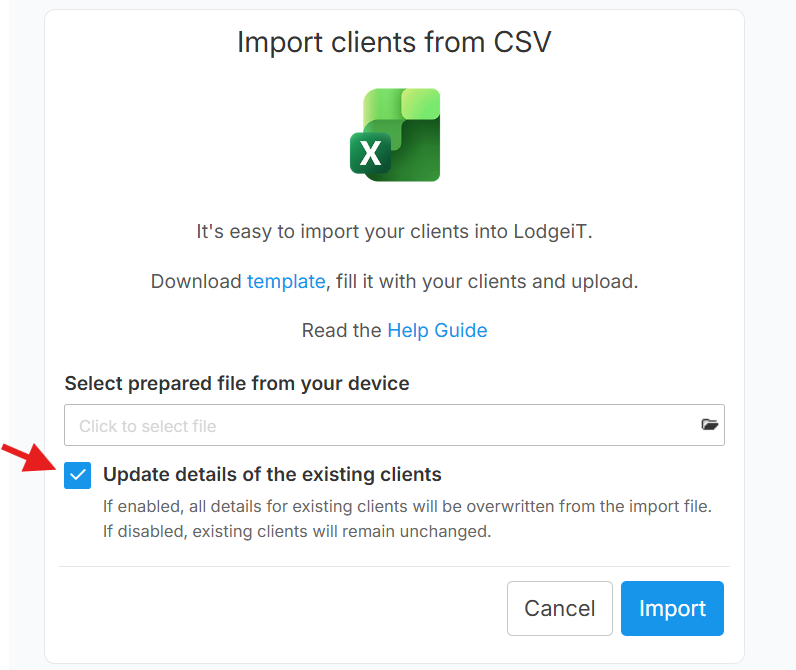
If you want to update existing clients and overwrite their existing data:
- Prepare your CSV file with the required client information.
- Add the Team column if you want to assign or update team assignments.
- Ensure the team names exactly match the teams already created in Lodgeit.
- Start the import.
- Tick the Overwrite existing clients/data checkbox.
- Complete the import.
Important: When using the overwrite option, the client's existing information may be replaced by the information provided in the import file. Review your CSV carefully before importing.
Quick Reference