
Note for TAX AGENT: Businesses and organisations will need to nominate you as their agent before you can add them to your client list. They will need to use the new agent nomination feature in Online services. Learn more here
Check your Team Permission and Access
Make sure that you have "Team" permission to Add or update client.
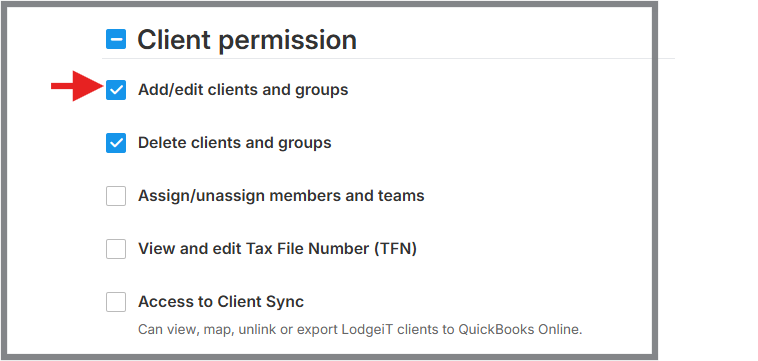
Add related entities or Adding Client
If you are a business completing a company, trust or partnership tax return, you should also add related entities, ie directors, beneficiaries & partners.
To add a client, you can either hit the + or select "Clients"

If you select "Clients", you will be presented with "Add Client' and you may also Import Client
Note: Deleting clients is not allowed in Lodgeit, only archive clients)
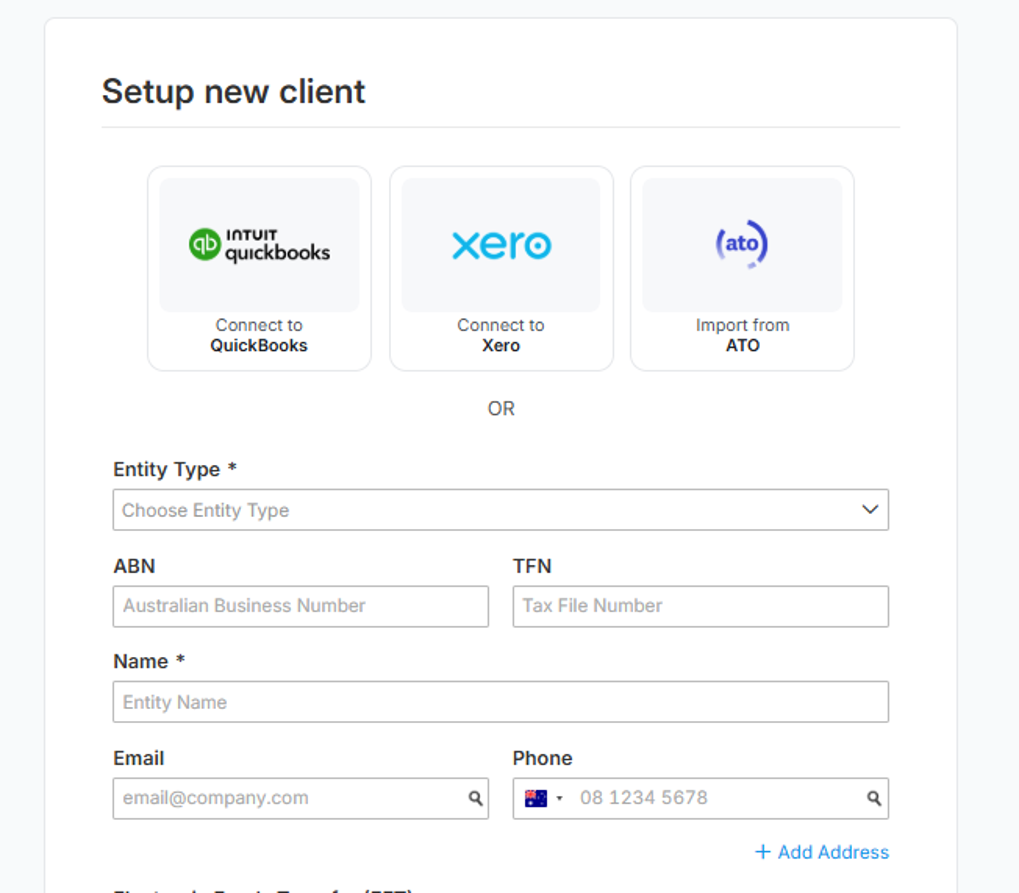
There are ways to add a client to Lodgeit:
1. QuickBooks or Xero Clients
If your client already exists in QuickBooks or Xero, click the relevant accounting software icon/logo. Lodgeit will connect to your accounting platform and allow you to select the client from your existing client list.
2. Import client from ATO
To avoid manually entering client details, you can import the client directly from the ATO by entering their ABN or TFN.
Once imported, the client information available in the ATO—including phone numbers, email addresses, postal addresses, and EFT details will be automatically populated. You can then select the required details from the available options.
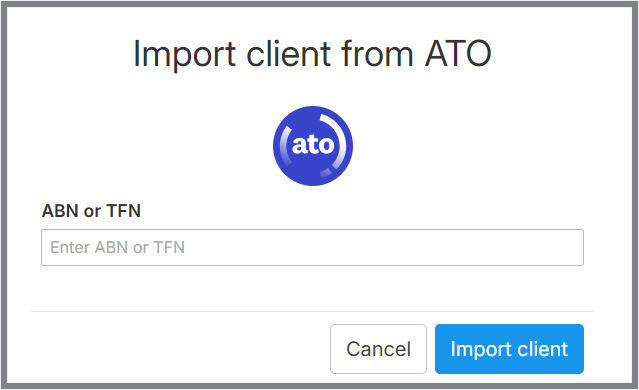
To add a client using their ATO details, click the ATO icon, then enter the client’s ABN or TFN. Lodgeit will retrieve and populate the available client information directly from the ATO.
3. Manually Add a Client
You can also add a client manually by entering the required client information directly into Lodgeit.
4. Import Client
allows the user to migrate/transfer the client list from accounting software to their own Lodgeit account. Learn more
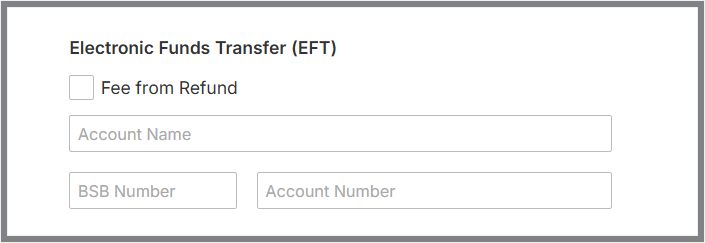
Electronic Fund Transfer (EFT) - A secure way for clients to receive refunds. Learn more
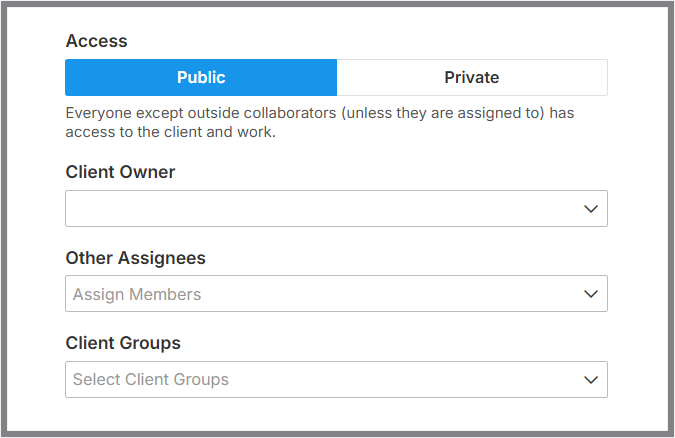
Client Access -Promotes collaboration and enhances communication between team members, which can improve overall productivity and efficiency.. Learn more
Notes for "Primary Contact/Signatory" - Lodgeit will not create duplicate if the following conditions are satisfied:
- If a client with the same First Name, Last Name and Email exists.
- The client is not archived. (So we do not recommend to archive Signatory clients)
- The user has access to this client.
- Lodgeit cannot accept client with the same Tax File Number (TFN)
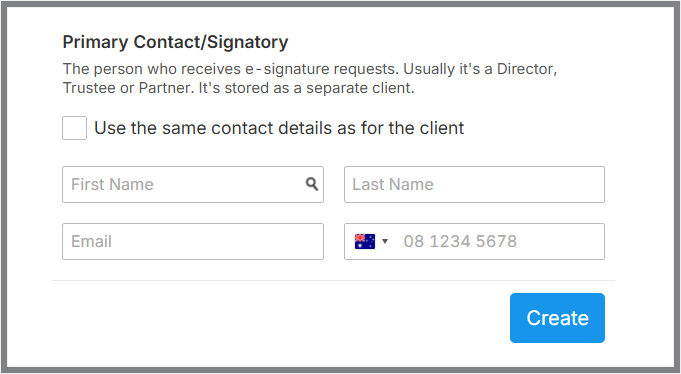
Otherwise it will create a new client.
Also, if all conditions are met, then the client will be suggested in the search field.
Please also be informed that when an agent creates a new client, the system uses the agent's contact details for a client on forms by default, please pay attention to it and change that if necessary.
Once the client has been added, we suggest that you immediately navigate to "Settings > General > Contact Details" and all other Settings tab in relation to the client and complete the relevant details to avoid form errors.
Managing client's access, refer to this guide Settings - Teams/Access (Member and Client Owner and Assignee)
Related Article:
Client List and Client Groups - Once you've added some clients from a family group i.e. husband & wife, you can move on to define client relationships. This is an important step if you wish for Lodgeit to auto-fill information from husband to wife or from trust to individual as an example.
- Settings-Import (From Accounting Software)
- To use QuickBooks Credentials to Sign-in to Lodgeit
Synchronise Client Details from Lodgeit to QuickBooks