
Record a hire purchase in Lodgeit to get its repayment schedule, see the liability in reports and fill the interest in a tax return.
In this article
- Before you start
- Find the interest rate or repayment
- Add a hire purchase
- View hire purchase reports
- Claim the interest in a tax return
- Common questions
Before you start
- You have the contract with the amount borrowed, the number of payments, the date of the first payment and how often payments are made.
- You know the interest rate and the repayment amount. If the contract shows only one, see Find the interest rate or repayment.
- If the hire purchase is for an asset, the asset is already added in Lodgeit, so you can link it.
Find the interest rate or repayment
Lodgeit needs both the interest rate and the repayment amount to build the schedule. Use one of these calculators to work out the one the contract does not show:
- To find the interest rate from the repayment, use the hire purchase interest rate calculator. It also handles a balloon payment. For the steps, see Finding the interest rate for a hire purchase.
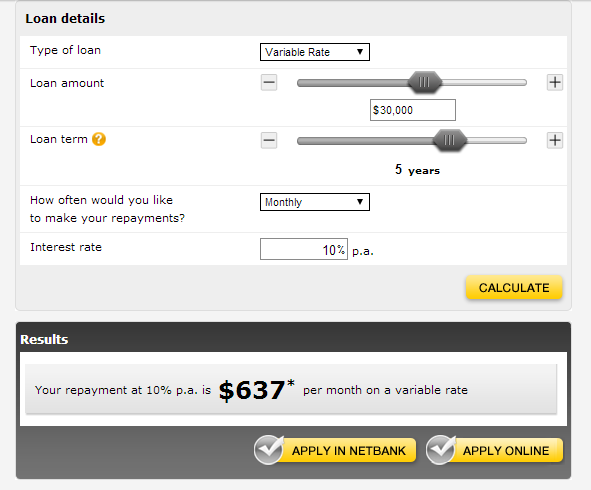
- To find the repayment from the interest rate and term, use the CommBank personal loan repayment calculator.
Add a hire purchase
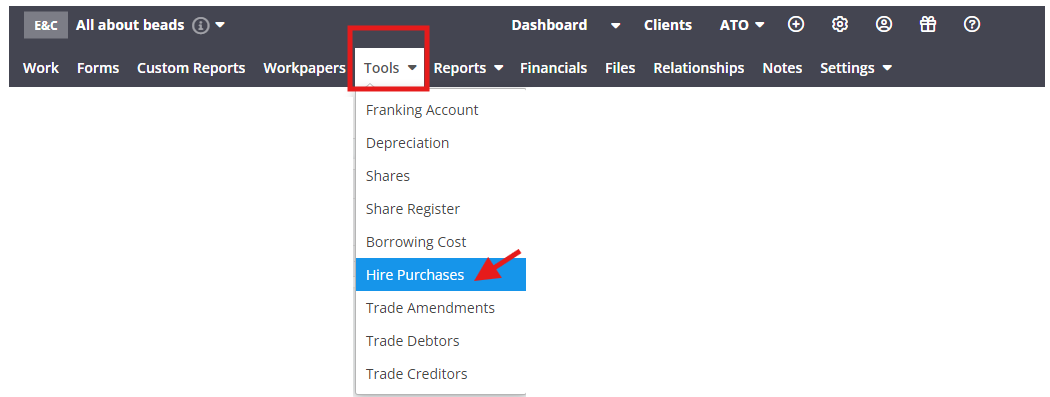
- Open Tools, then select Hire Purchases.
- Select Add hire purchase. Under Related documents, upload a copy of the contract for future reference.
- Under Details, enter a Name that identifies the hire purchase, such as the provider and the asset, and the Contract Number exactly as it appears on the contract.
- Enter the Date of First Payment from the contract. Lodgeit calculates the schedule and the balance on each date from it.
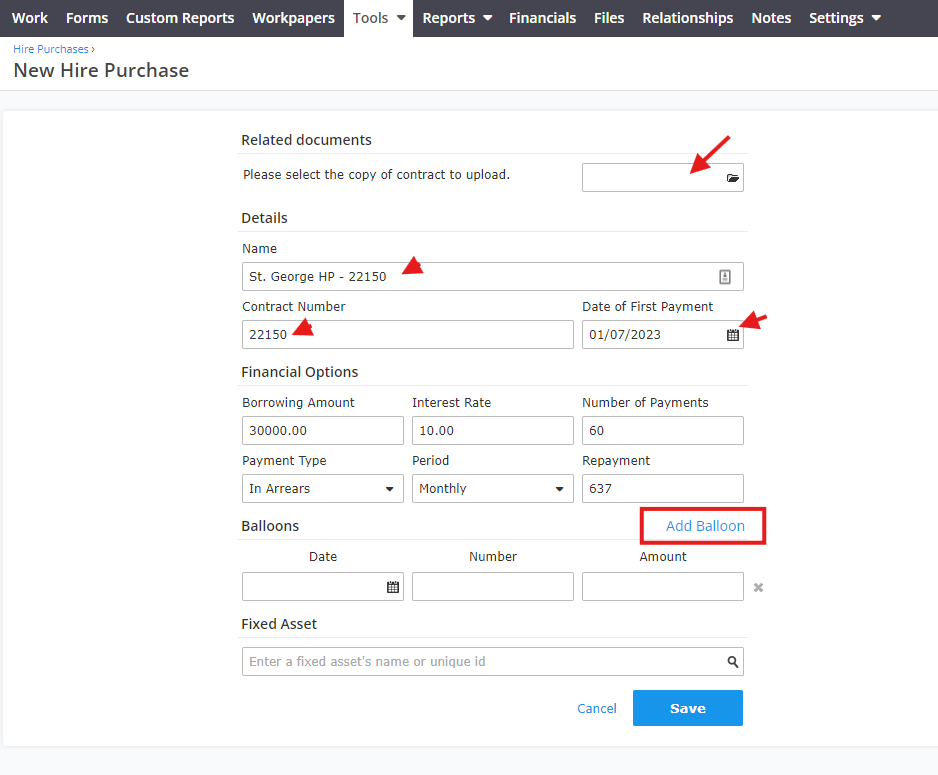
- Under Financial Options, enter the Borrowing Amount, Interest Rate, Number of Payments and Repayment.
- Choose the Period: Monthly, Fortnightly or Weekly.
- Choose the Payment Type. Select In Advance if the first payment is made when the contract starts, so it carries no interest. Select In Arrears if it is made at the end of the first period.
- If the contract has balloon payments, select Add Balloon and enter the date and amount of each one.
- Under Fixed Asset, search for the asset by its name or unique ID and select it.
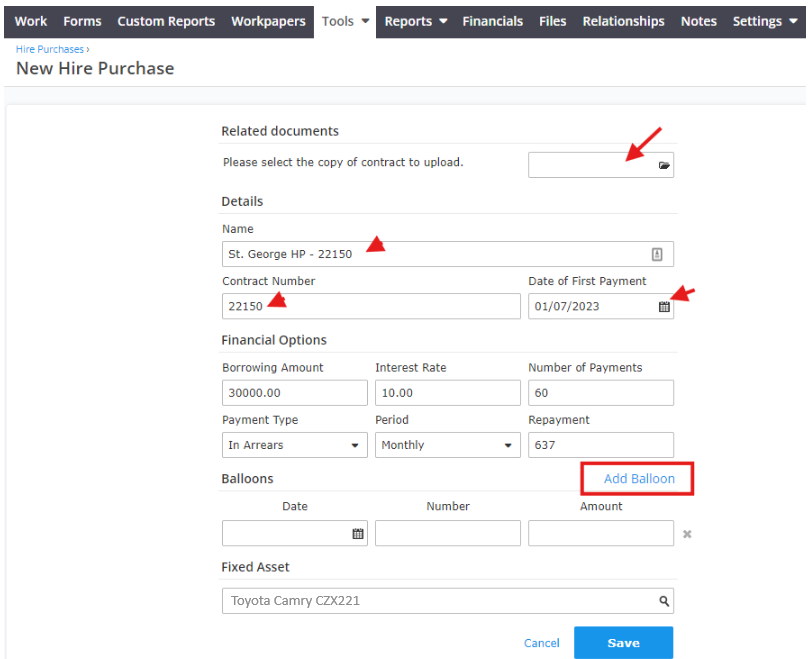
- Select Save.
View hire purchase reports
- Open Reports, then select Hire Purchase for one hire purchase or Hire Purchase Summary for all of them.
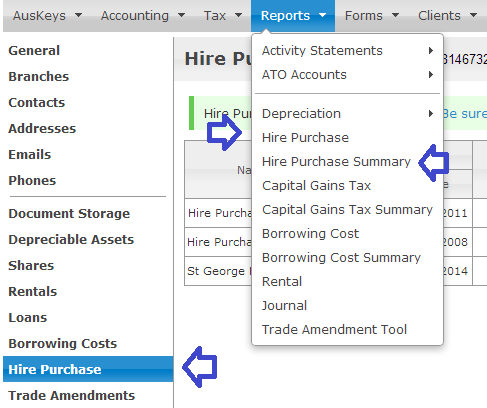
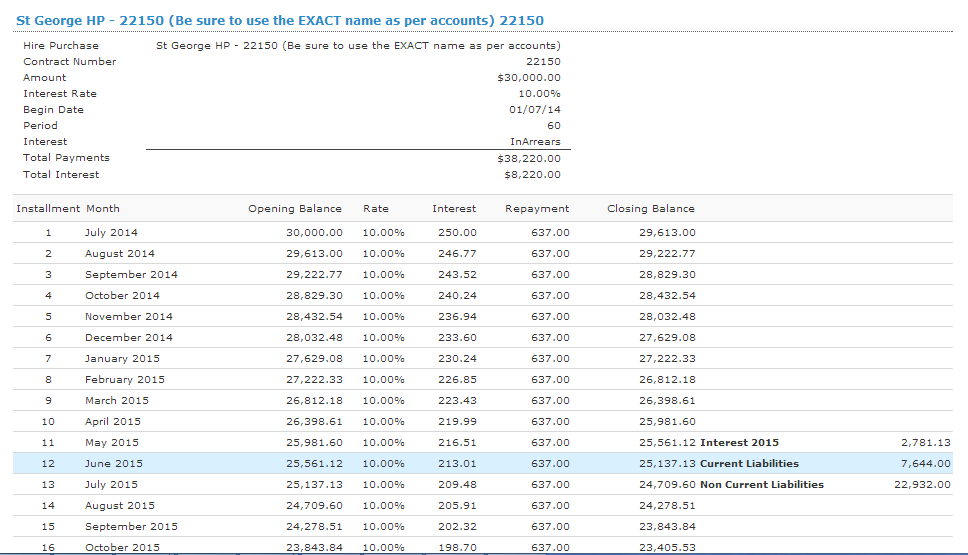
- For Hire Purchase, search for the hire purchase by its name or contract number.

- Review the schedule: each payment with its opening balance, interest, repayment and closing balance.
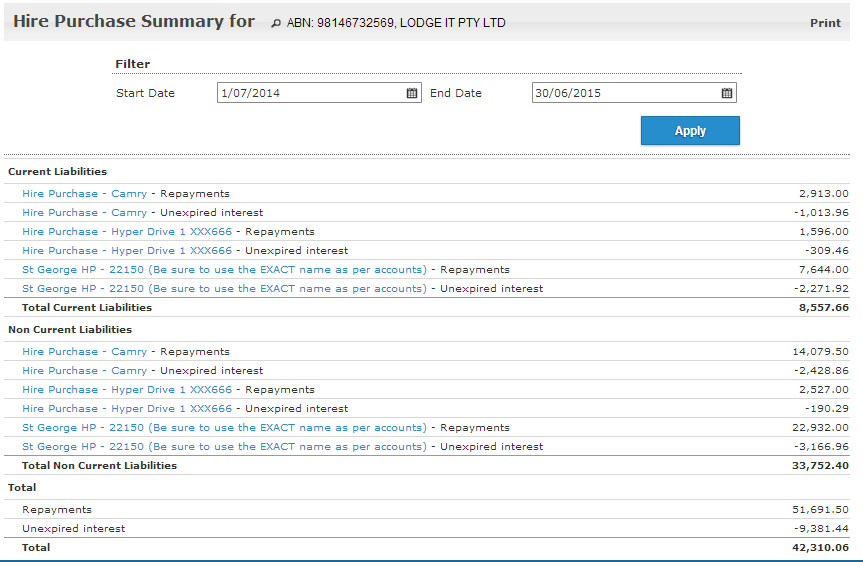
- For Hire Purchase Summary, enter the start and end dates. The report shows each hire purchase split into current and non-current liabilities.
Claim the interest in a tax return
Lodgeit can fill hire purchase interest in the rental property and car expense worksheets of a tax return.
- In the rental property or car expense worksheet, add a Hire Purchase worksheet to the hire purchase interest field.
- In Name, start typing the name or contract number of the hire purchase and select it. Lodgeit fills Interest expense for the income year from the schedule.
- If part of the use is private, change Use (%) from 100 to the share you can claim. Lodgeit works out the Claim amount.
Common questions
Can I record a hire purchase with weekly or fortnightly payments?
Yes. Choose Weekly or Fortnightly in Period.
Where do I enter account fees?
The hire purchase form has no field for account or monthly fees, so they are not part of the schedule.