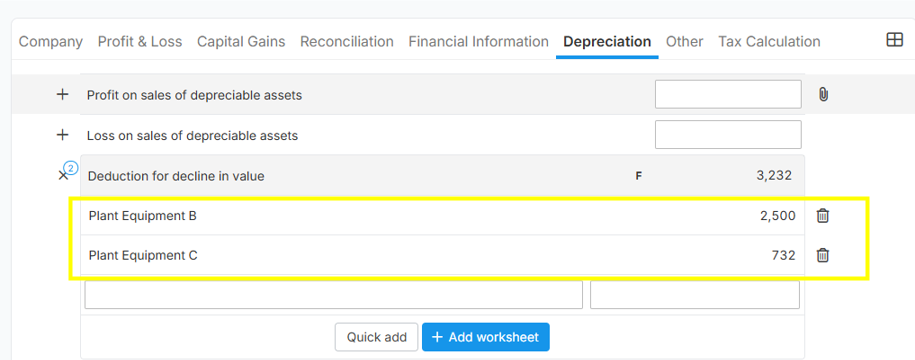
This video tackles on how easy to import assets from CSV directly into your tax forms.
See attached excel sample of templates.
Sample below is for a Company Tax Return.
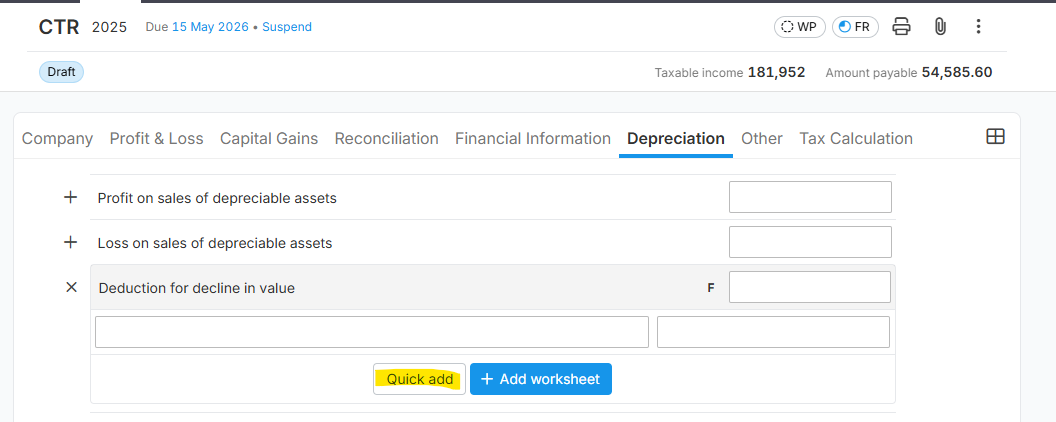
1. Go to the specific section of the tax form on which you need to add assets. Click "Depreciation" > "Quick Add".
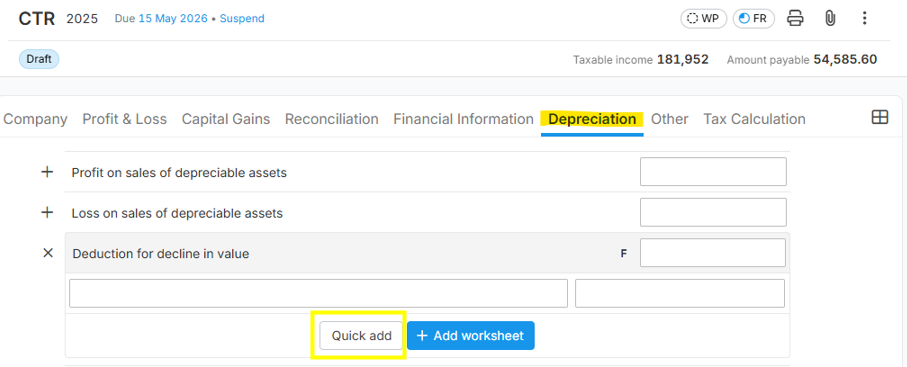
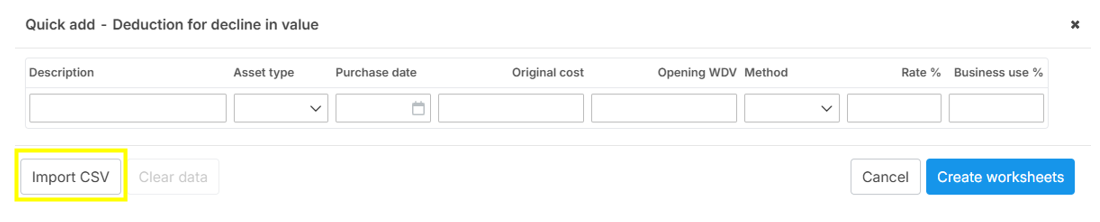
2. Click "Import CSV".

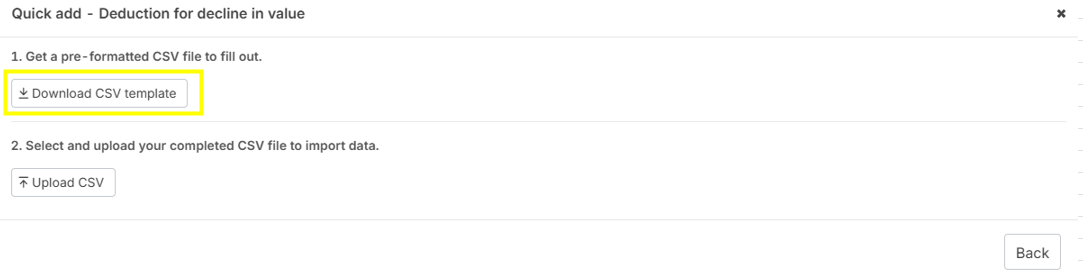
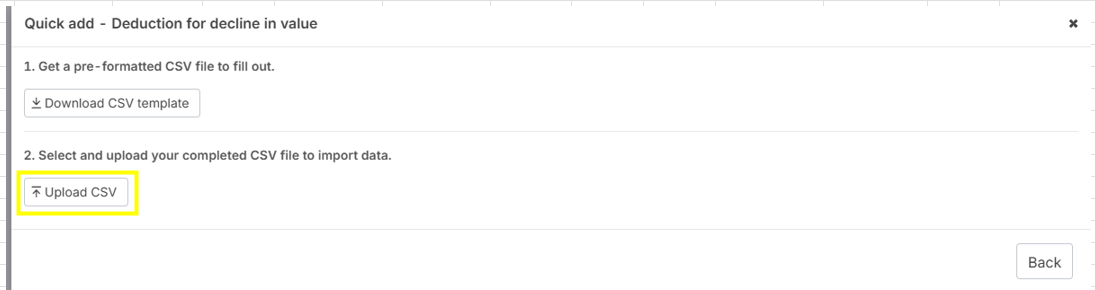
3. Click "Download CSV template" to get a csv file template.
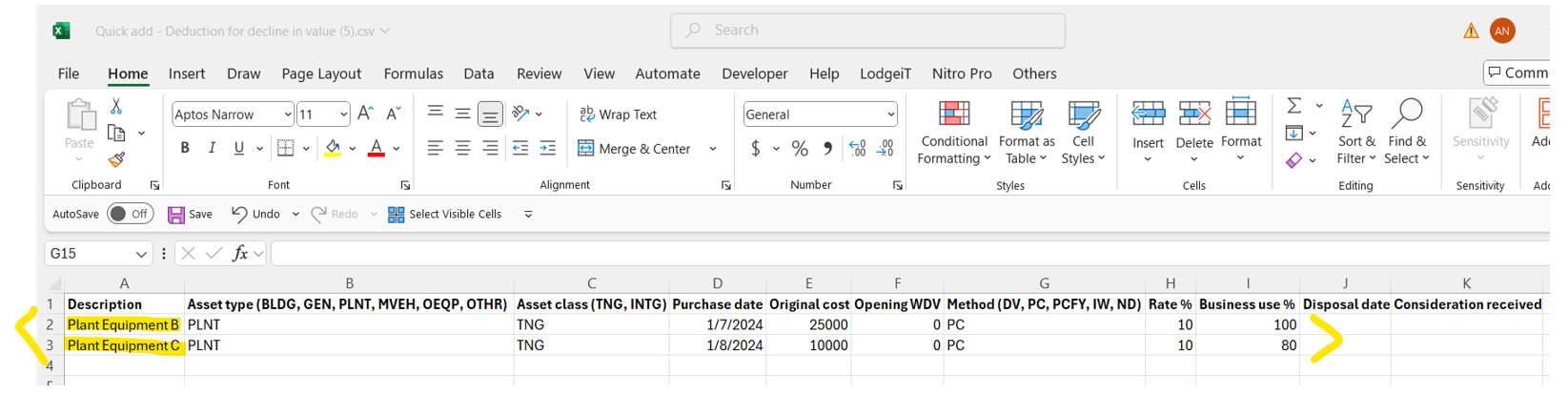
4. Open the CSV template and fill-up the necessary details (below is a sample import csv file with 2 assets).
5. After filling-up the CSV file, you can import the file by selecting "Quick Add" > "Import CSV" button.
6. Select "Upload CSV" and select the CSV file for import.
7. The message notification "CSV data was imported successfully." will show and then click "Create worksheets".

8. Assets worksheet were already added in the specific section of the tax form on which you have done the CSV import.