
Lodgeit is moving tax depreciation into tax returns and turning the depreciable assets register into an accounting depreciation register. This article explains how to move a client's existing tax asset groups and pools into accounting depreciation, either by copying them across or by using the Asset transform tool.
In this article
- What is changing
- Before you start
- Open the migration screen
- Migrate asset groups
- Migrate pools
- About the Asset transform tool
- Check the CSV before you upload
- Fix upload errors
- After the migration
What is changing
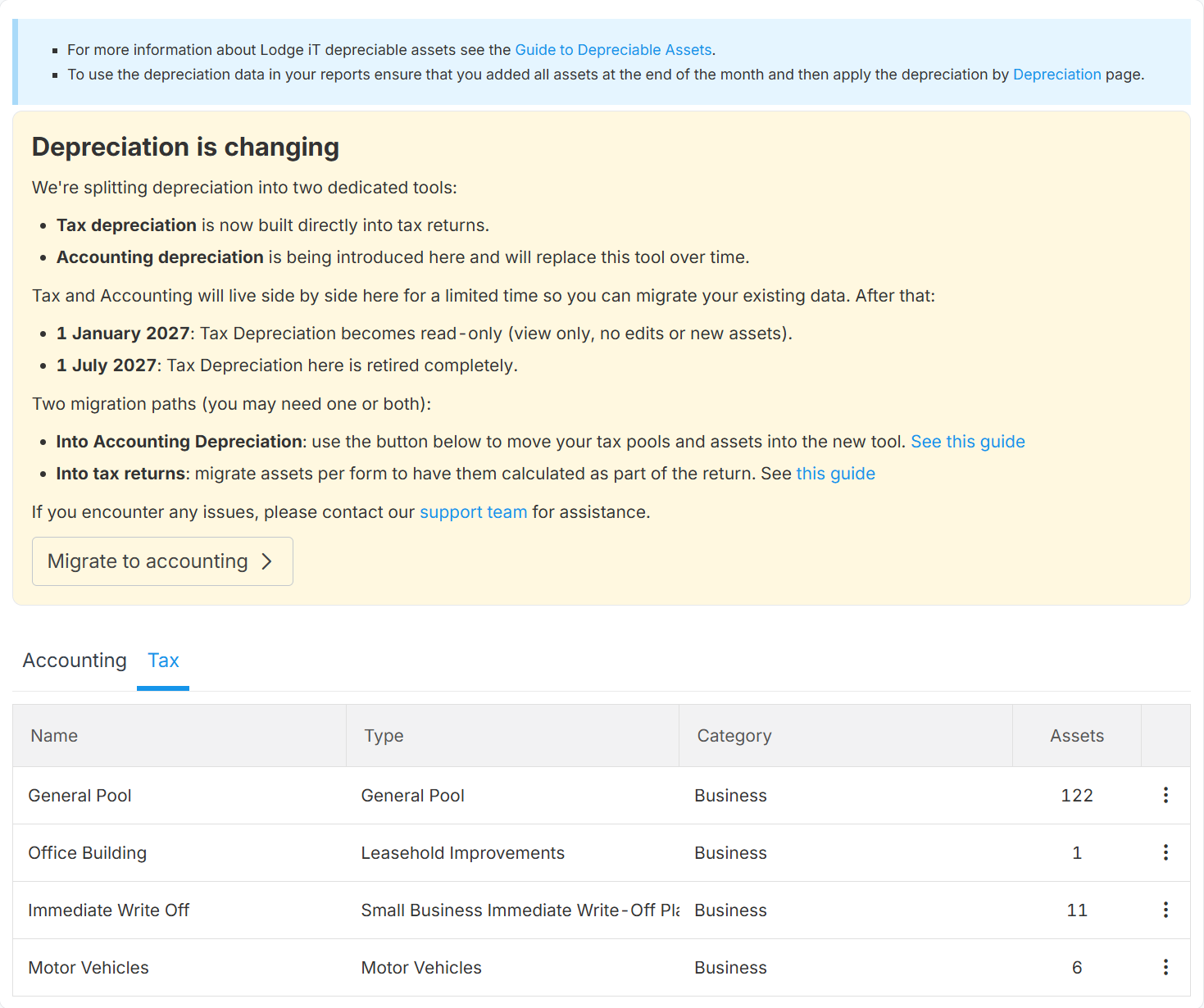
Depreciation is splitting into two tools:
- Tax depreciation is now built into tax returns.
- Accounting depreciation replaces the existing depreciable assets register.
Both live side by side for a limited time so you can move your data across. After that:
- 1 January 2027: tax depreciation becomes read-only. You can view it, but you cannot edit it or add assets.
- 1 July 2027: tax depreciation is retired from the depreciable assets register.
There are two separate migration paths and you may need both. This article covers moving assets into accounting depreciation. To have assets calculated as part of a tax return instead, see Migrating depreciation into a tax return.
Before you start
- You need the Work edit permission to run a migration, and the Work view permission to download a CSV.
- You can migrate each client's asset groups once and its pools once. After a migration succeeds, that option is marked Complete and cannot be run again. There is no way to undo a migration, so check your values before you upload.
- Set the client's ANZSIC code before you use the Asset transform tool. Without it the tool still suggests methods, rates, and effective lives, but industry-specific ATO effective lives may not be applied.
- Residual value defaults to $0.00. If any assets have a meaningful salvage value, migrate them through the CSV rather than Auto-copy. The Residual value column is imported, but Auto-copy sets every asset to $0.00 and leaves you to edit each one afterwards.
- Accumulated depreciation is recalculated automatically on import, up to the client's first depreciation date shown on the migration screen.
- Accounting depreciation prorates using the actual number of days in the year, 365 or 366, rather than the fixed 365-day tax formula.
- The Asset transform tool suggests values from the ATO effective life tables. A professional review under AASB 116 is still required before you finalise the migration.
- Complete your migration by 30 June 2027.
Open the migration screen
- Open the client and go to Depreciable Assets.
-
Find the Depreciation is changing notice at the top of the page and select Migrate to accounting.
-
On the Depreciation migration screen, review what needs to move. Asset groups, pools, or both are listed depending on the client's data.
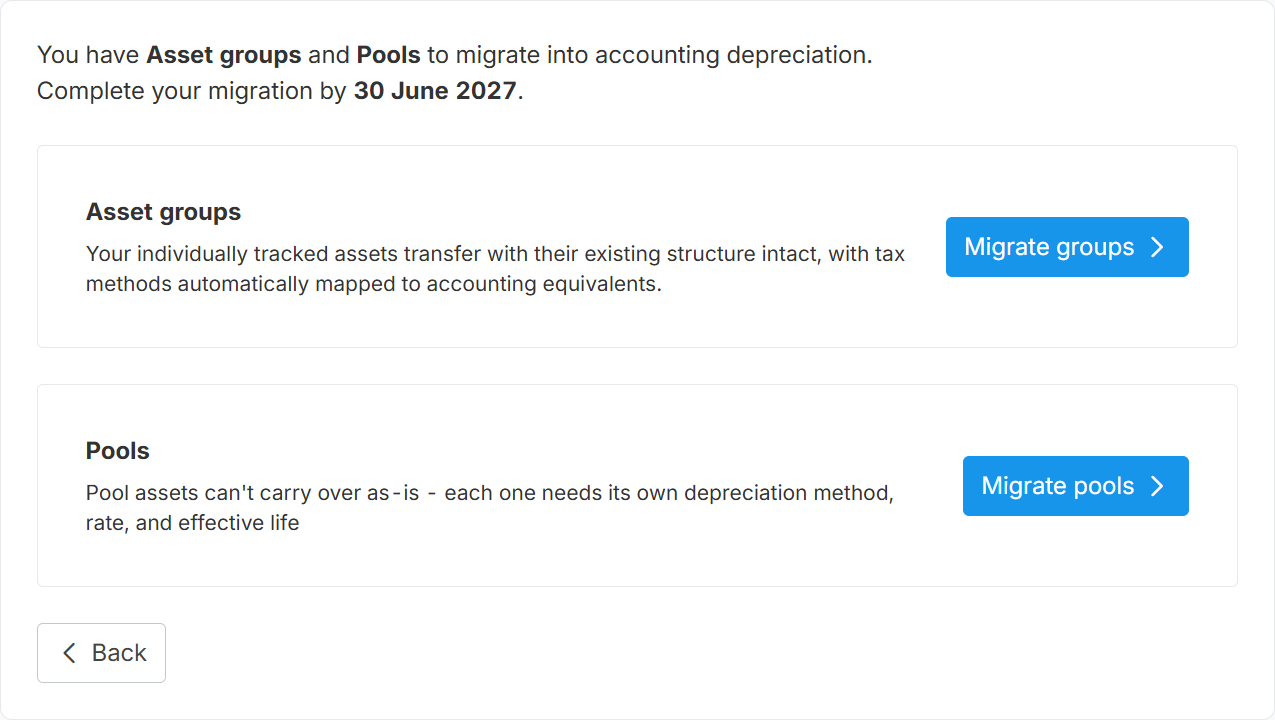
- Select Migrate groups or Migrate pools.
Migrate asset groups
Individually tracked assets keep their existing structure. Group names and the assets in each group are preserved, and tax methods are mapped to their accounting equivalents.
The Asset group migration screen offers two options:
- Copy as-is: copy the assets across using the mapped accounting methods. This is selected by default.
- Use asset transform tool: get suggested methods, rates, and effective lives for review before you import. See About the Asset transform tool.
How tax methods are mapped
When you copy assets as-is, Lodgeit maps each tax method as follows:
- Prime Cost to Prime Cost
- Diminishing Value, for assets acquired before 10 May 2006, to Diminishing Value 150%
- Diminishing Value, for assets acquired on or after 10 May 2006, to Diminishing Value 200%
- Immediate Write-off to Immediate Write-off
- Temporary full expensing to Immediate Write-off
- Section 40-880 deduction over 5 years to Prime Cost over 5 years
- Section 40-880 immediate write-off to Immediate Write-off
Copy the assets across
- Select Copy as-is.
-
Select Auto-copy followed by the asset count, for example Auto-copy 122 assets. The assets are created in accounting depreciation immediately.
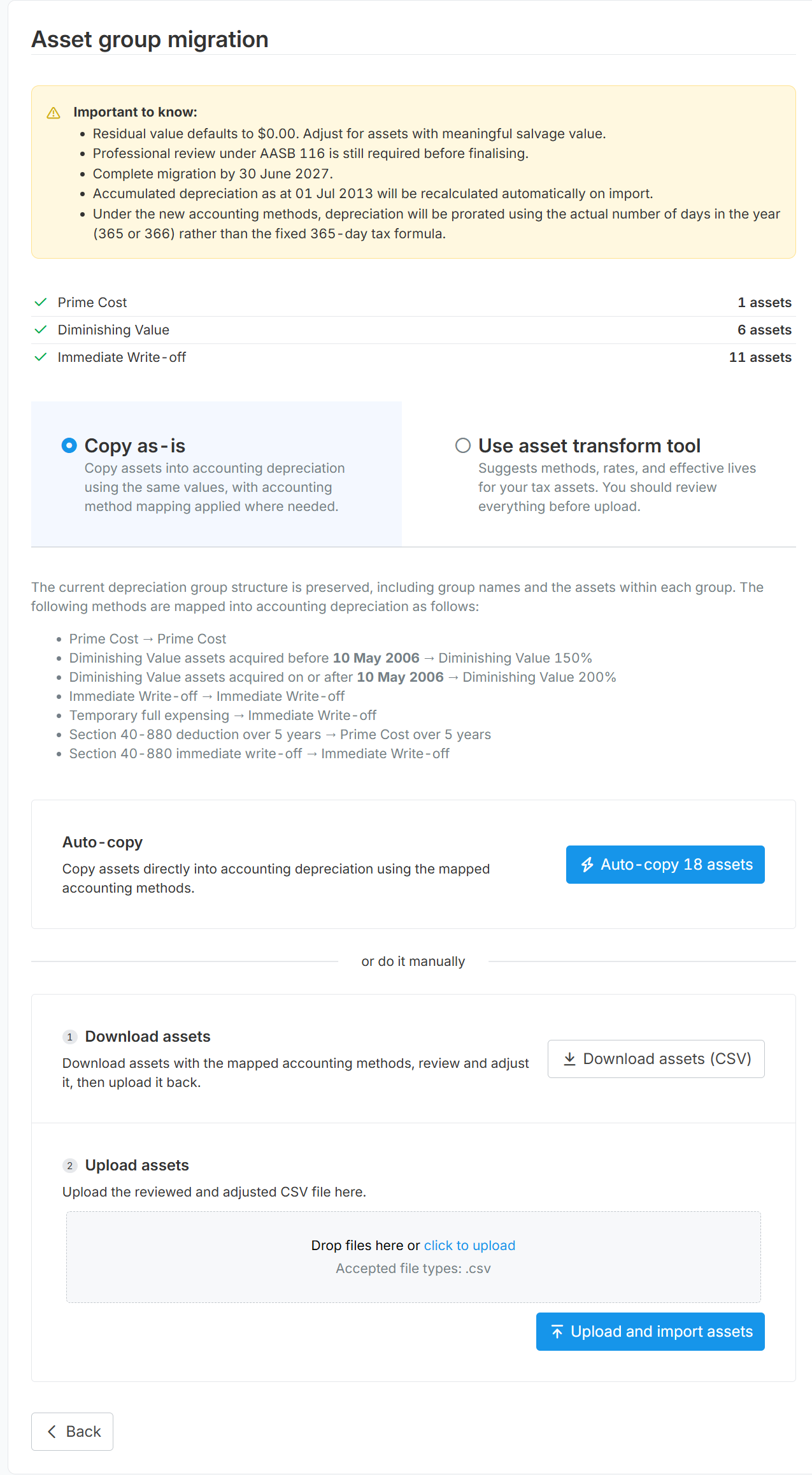
To review the values before they are created, use the manual steps on the same screen:
- Select Download assets (CSV). The file contains the mapped accounting methods.
- Review and adjust the file. See Check the CSV before you upload.
- Drop the file into the upload area, or select click to upload.
- Select Upload and import assets.
Use the Asset transform tool
-
Select Use asset transform tool.
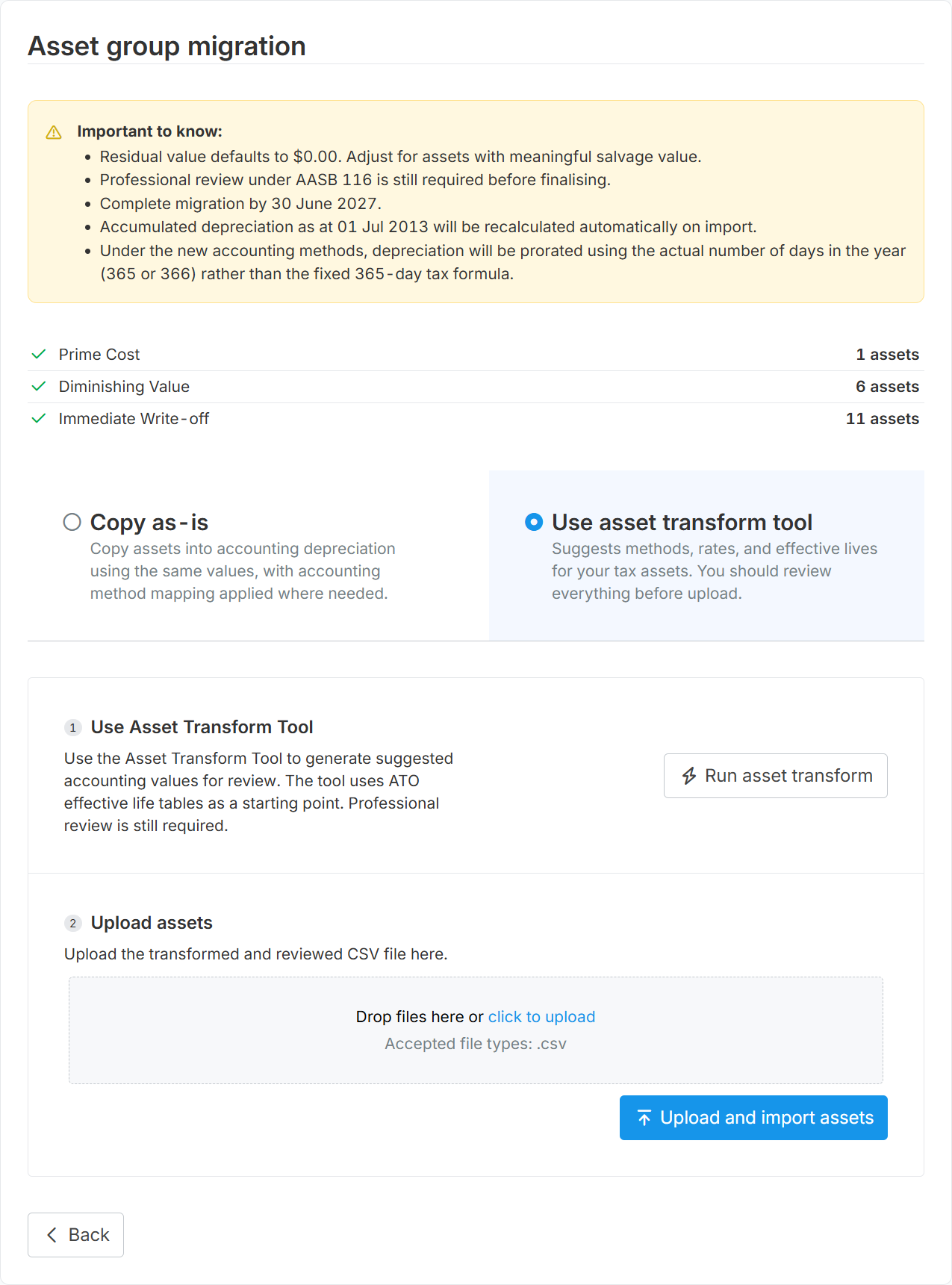
- Select Run asset transform. Progress is shown as the number of assets completed.
- When the status reaches Completed, select Download assets.
- Review every suggested method, rate, and effective life. See Check the CSV before you upload.
- Drop the reviewed file into the upload area, or select click to upload.
- Select Upload and import assets.
Migrate pools
Pool assets cannot carry across as-is. Pooled assets are depreciated at the pool rate, so each asset needs its own depreciation method, rate, and effective life before it can sit in an accounting register.
The Pool migration screen offers two options:
- Asset transform tool: suggests methods, rates, and effective lives for your pool assets. This is selected by default. See About the Asset transform tool.
- Manual: assign methods, rates, and effective lives to each pool asset yourself, then upload.
Select Download (CSV) under Download pool balances first. Use it to reconcile the closing pool balance against the asset values you import.
Use the Asset transform tool
-
Select Asset transform tool.
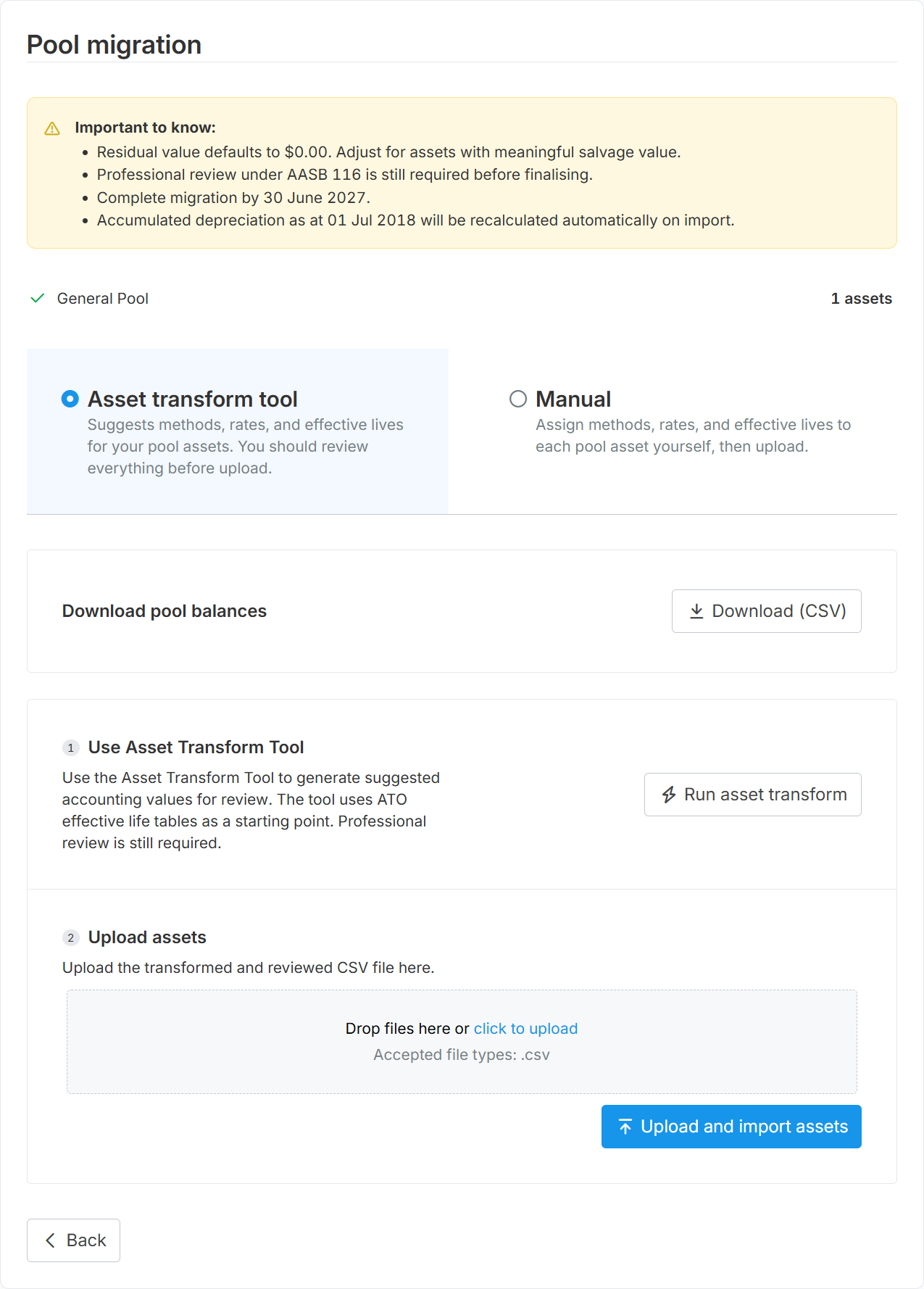
- Select Run asset transform. Progress is shown as the number of assets completed.
- When the status reaches Completed, select Download assets.
- Review every suggested method, rate, and effective life. See Check the CSV before you upload.
- Drop the reviewed file into the upload area, or select click to upload.
- Select Upload and import assets.
Assign the values manually
-
Select Manual.
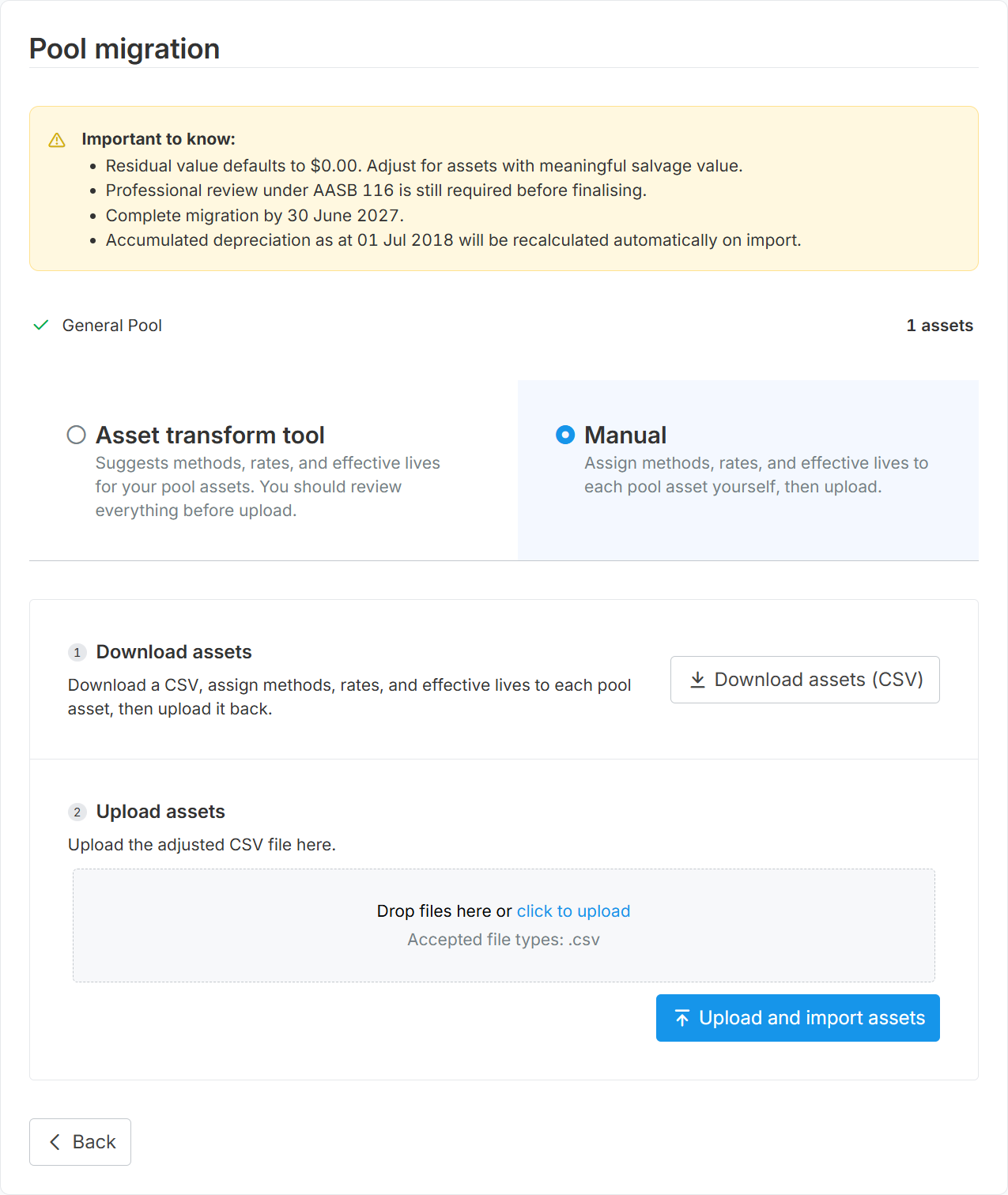
- Select Download assets (CSV).
- Enter a method, rate, and effective life for each pool asset. See Check the CSV before you upload.
- Drop the file into the upload area, or select click to upload.
- Select Upload and import assets.
About the Asset transform tool
The Asset transform tool uses AI to suggest an accounting method, rate, and effective life for each asset. It works from the asset description and the Commissioner's effective life determination, and it records where each suggestion came from.
Set the client's ANZSIC code before you run it. With the code set, the tool can use the industry-specific determination in Table A and falls back to the general determination in Table B. Without it, more assets come back as an estimate from comparable assets rather than a determination, which leaves you more to check.
The suggestions are not guaranteed to be correct. You remain responsible for the values you import, so check the file before you upload it and change anything that does not suit the client. A professional review under AASB 116 is still required.
The downloaded file has the same columns as the standard CSV, plus extra columns that record how each suggestion was reached. Those extra columns are ignored on upload, so there is no need to delete them.
Start your review with these columns:
- report_status: flags the rows the tool could not complete.
- accounting_update_status: shows where the accounting columns were left empty, either because the description was too generic to identify the asset or because the suggestion needs your decision.
- effective_life_confidence: low and medium suggestions need more scrutiny than high ones.
- effective_life_source_type: where the effective life came from, either a Commissioner's determination or an estimate based on comparable assets. It reads none when the tool could not find a usable source.
- effective_life_selected_asset_class and effective_life_source_url: the asset class the suggestion was based on, and the determination it was taken from.
- audit_review_reason and audit_note: why the row was flagged, and what to check.
A flagged row usually comes back with Accounting rate % and Accounting effective life empty. Both are required for PC and DV methods, so the upload is rejected until you fill them in.
The remaining columns are working notes. Keep the file as your record of how the values were reached.
Check the CSV before you upload
Keep the original column headings. The upload is rejected if a required heading is renamed or missing. Extra columns are ignored, so anything the Asset transform tool adds can stay.
These columns must have a value in every row:
- Description: the asset name.
- Group name: the accounting group the asset goes into.
- Purchase date
- Original cost
- Accounting method (PC, DV100, DV150, DV200, IW, ND): enter one of the codes in the heading.
Use these method codes:
- PC: Prime cost
- DV100: Diminishing value 100%
- DV150: Diminishing value 150%
- DV200: Diminishing value 200%
- IW: Immediate write-off
- ND: Non-depreciable
The rest of the file follows these rules:
- Accounting rate % and Accounting effective life are required for PC, DV100, DV150, and DV200. They are not required for IW or ND.
- Accounting rate % must be above 0% and no more than 100%.
- Group name is matched against your existing accounting groups. If no group matches, a new accounting group is created with that name. Change the name to regroup assets as you migrate.
- Reference must be unique across the client's accounting assets.
- Disposal date is required when Consideration received has a value, and it cannot be earlier than the purchase date.
- Definition is the asset's description, and it is optional. The column named Description holds the asset name, so check you are filling in the right one.
- Residual value is blank by default and is treated as $0.00. Enter a value for assets with a meaningful salvage value.
- The Tax method, Tax rate %, Tax effective life, and ANZSIC code columns are there for reference. They are not imported.
Fix upload errors
The upload is all or nothing. If any row fails validation, nothing is imported and Lodgeit shows We couldn't complete your migration, with a count of the assets that are ready and a table of the row, column, and error for each problem.
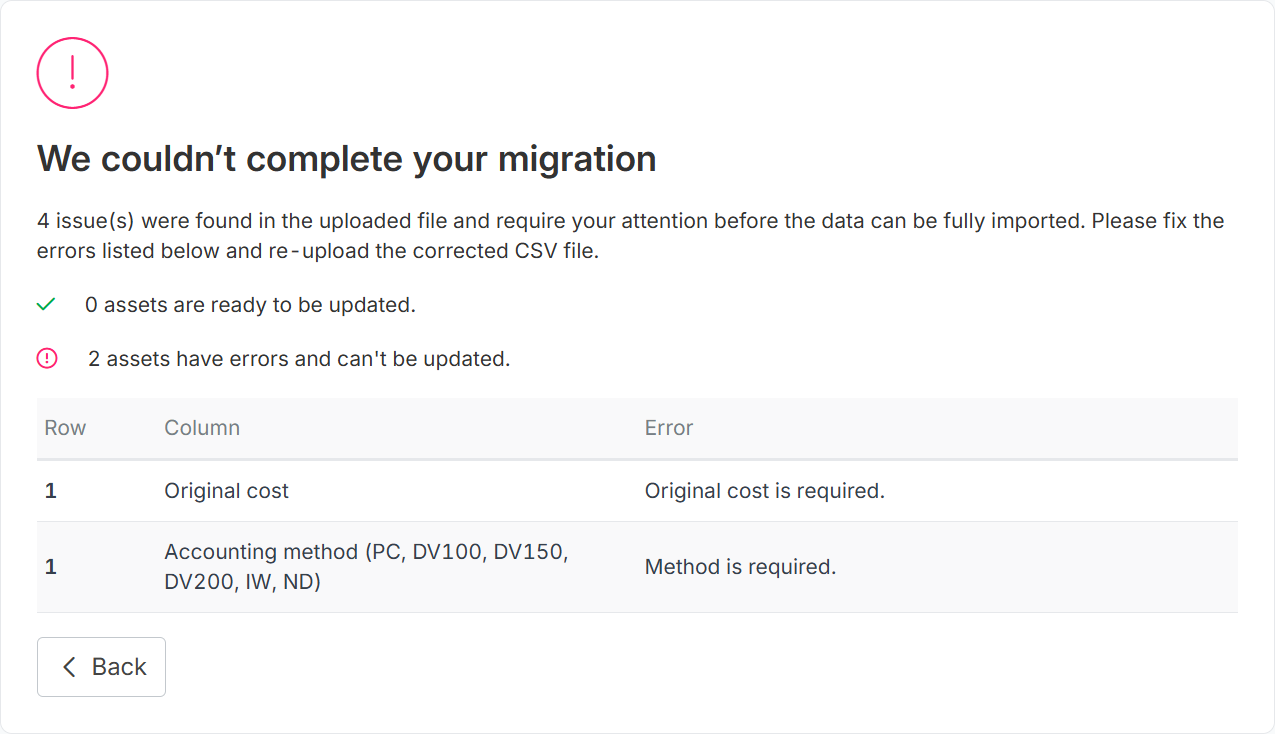
Correct the listed rows in your CSV file, then upload it again. Common messages include:
- Asset name is required. Fill in the Description column.
- Group is required. Fill in the Group name column.
- Method is required. Enter one of the method codes.
- Rate is required. or Effective life is required. Complete both columns for PC and DV methods.
- Rate must be greater than 0% and less or equal than 100%. Check the value in Accounting rate %.
- Reference should be unique number. Remove the duplicate reference.
- A date of disposal cannot be prior to a date of purchase. Check both dates.
- Incorrect CSV format. Download the file again and re-enter your changes, keeping the original column headings.
After the migration
A confirmation screen shows how many assets were migrated. Select Go to assets to open the register.
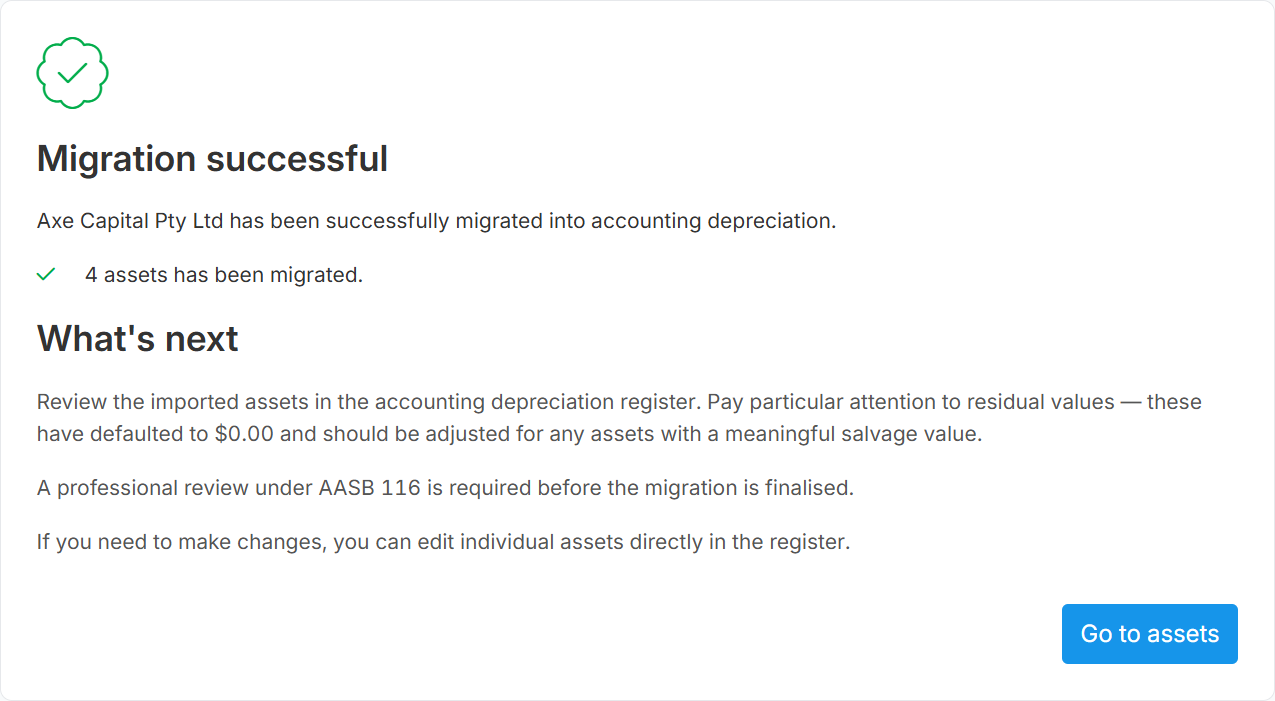
- Open the Accounting tab on the depreciable assets page and check the imported groups and assets.
- Review residual values. If you used Auto-copy, every asset was set to $0.00, and you need to open each asset to change it.
- Check accumulated depreciation against your accounting records, and for pools against the pool balances CSV you downloaded.
- Complete a professional review under AASB 116 before you finalise.
- Edit any asset directly in the register if you need to change it.
Your tax depreciation data stays on the Tax tab. The migration copies your assets, it does not move or delete them.
If you run into problems, contact support@lodgeit.net.au.