
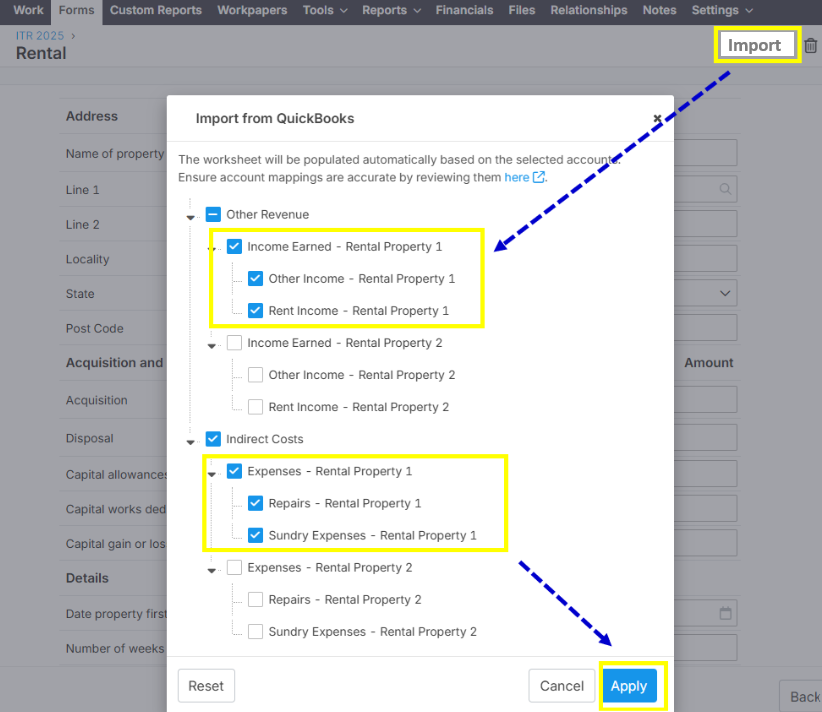
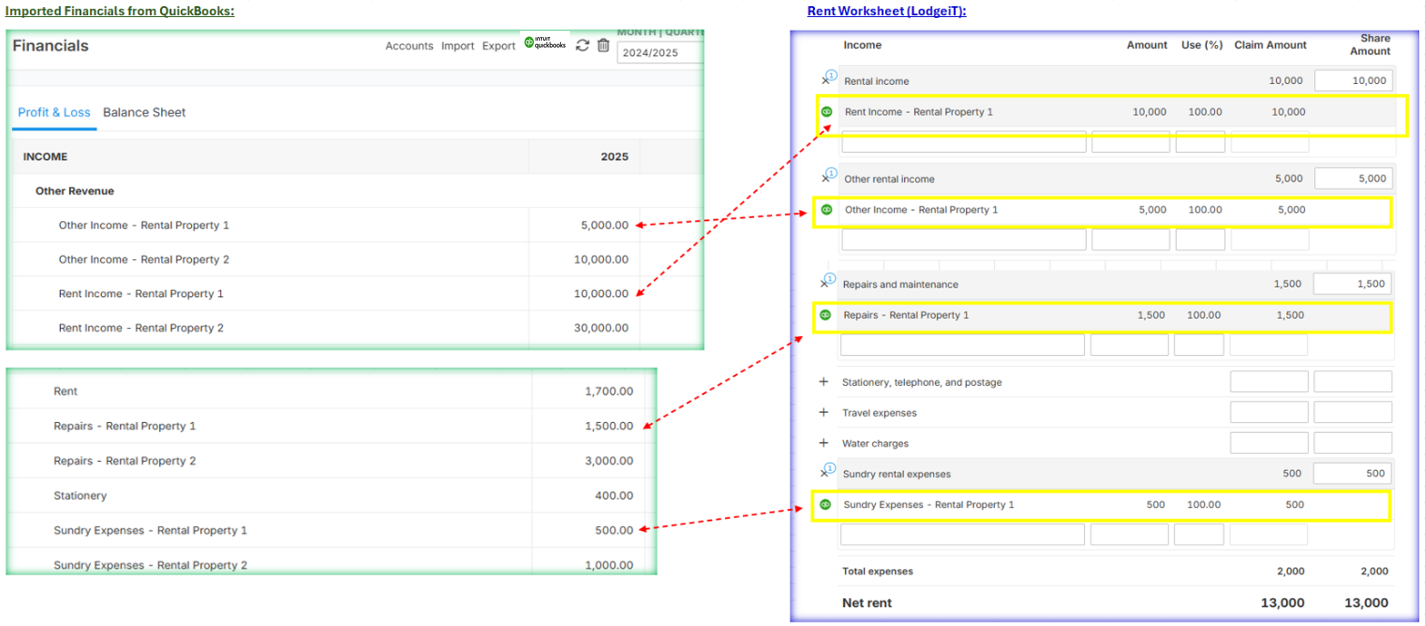
For Rental Properties, you can now import rental income and expenses from QuickBooks to Lodgeit Rent schedule.
To import the rental income and expenses from QuickBooks to the rental schedule in Lodgeit. We suggest that you ensure first that the Account Name has a clear and distinct description in QuickBooks chart of accounts, so that Lodgeit will automatically map it to the proper account classification.
QuickBooks Chart of Accounts sample account name and account type for 2 rental properties:
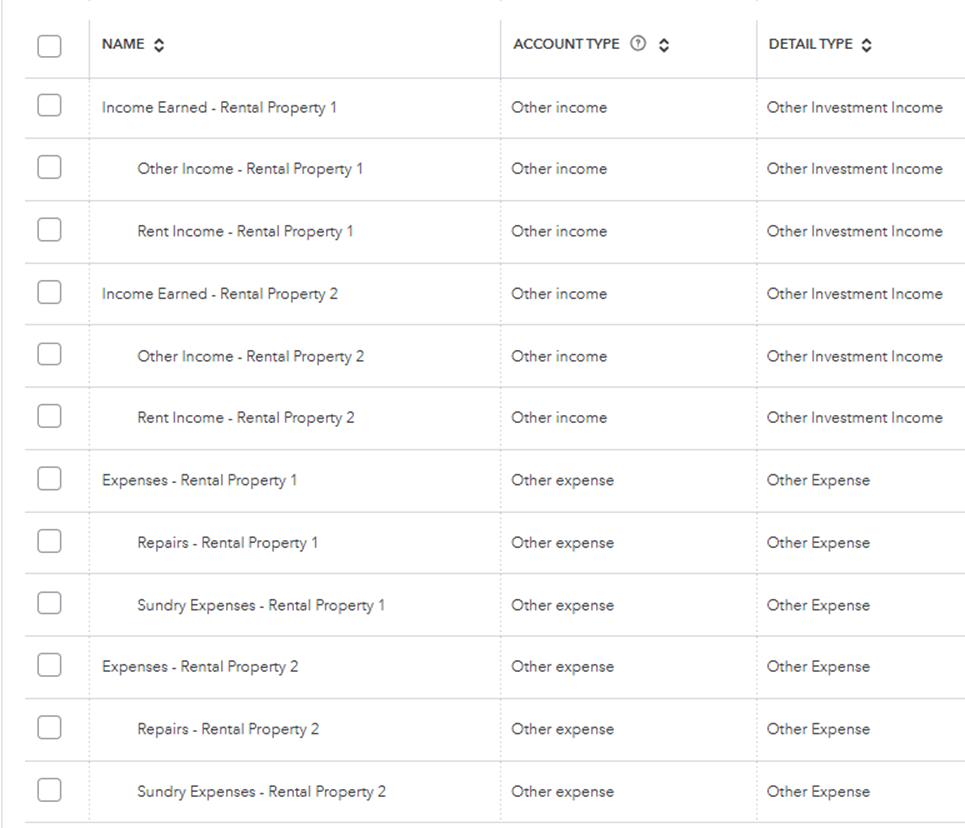
Also, make sure to classify "Accounts", ie tag under rental related accounts in Lodgeit.
Here are the list of accounts where you should map your rental income and expenses:
NOTE: You need to select the lowest taxonomy among the accounts. The accounts in blue highlight per images below is the account to be selected.
- Rental property income related accounts - (Investment Revenue > Rental Income > xxxxxx).
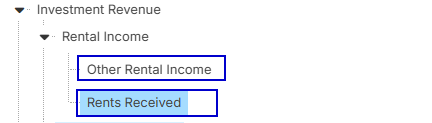
- Rental property expense related accounts - (Indirect Costs > Rental Property Costs > xxxxxx)
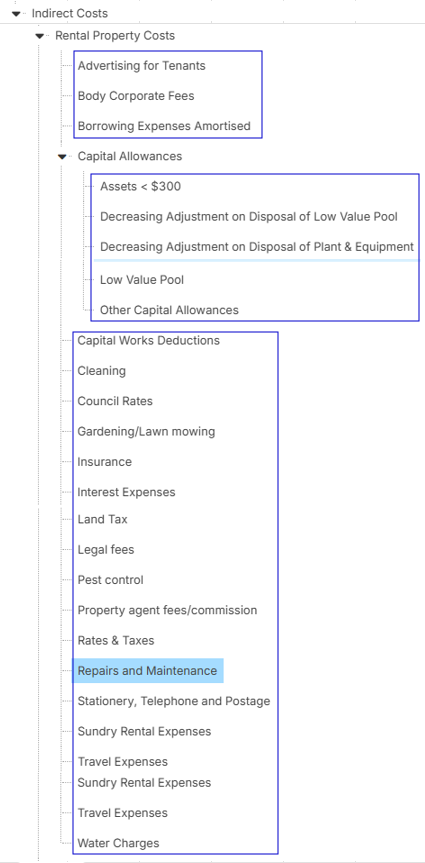
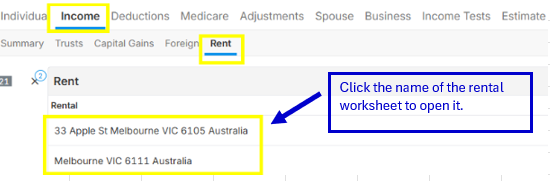
Once the proper account mapping in Lodgeit is already done, then you need add a rent Worksheet by clicking "Add Worksheet" via "Income > Rent" section.
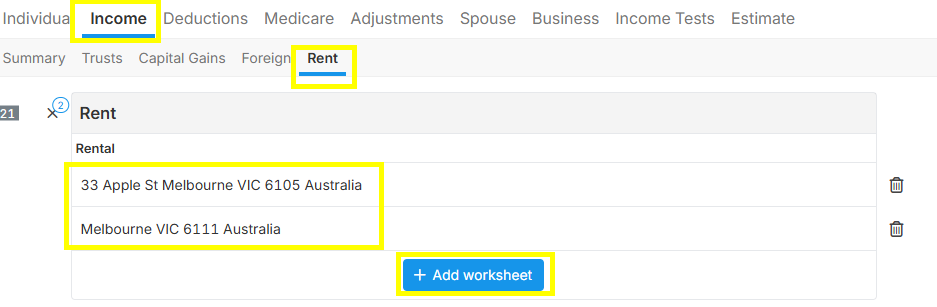
For additional reference, click here - Learn more.