
Your clients can pay the ATO amount on an Activity Statement straight after they e-sign it. They can pay by credit or debit card, including Apple Pay and Google Pay. The payment is sent to the ATO for them.
In this article
- Before you start
- Turn on card payments
- What your clients see
- Platform Service Fee
- Emails your clients receive
- Turn off card payments
Before you start
A client sees the payment option only when all of these apply:
- The form they e-sign is an Activity Statement.
- The Activity Statement has an amount payable to the ATO greater than $0.
- The Activity Statement is not an amendment.
- Card payments are turned on in Client Defaults.
Turn on card payments
-
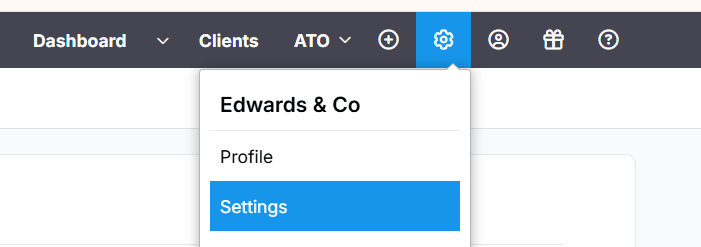
Select the gear icon, then select Settings.
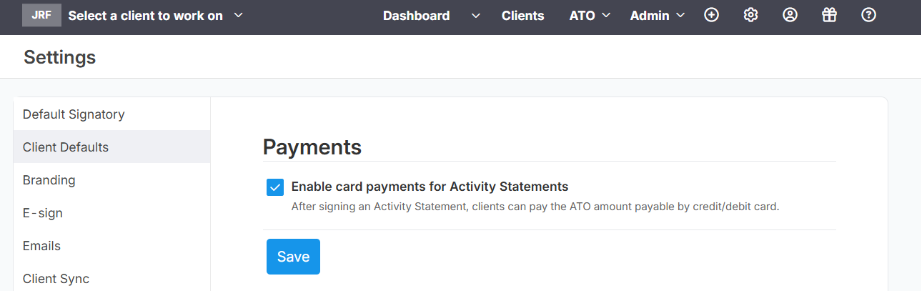
- Select Client Defaults in the left menu.
- Under Payments, tick Enable card payments for Activity Statements.
-
Select Save.
Eligible clients will see the payment option the next time they e-sign an Activity Statement. You don't need to set anything up for each client.
What your clients see
- The client e-signs the Activity Statement as usual.
-
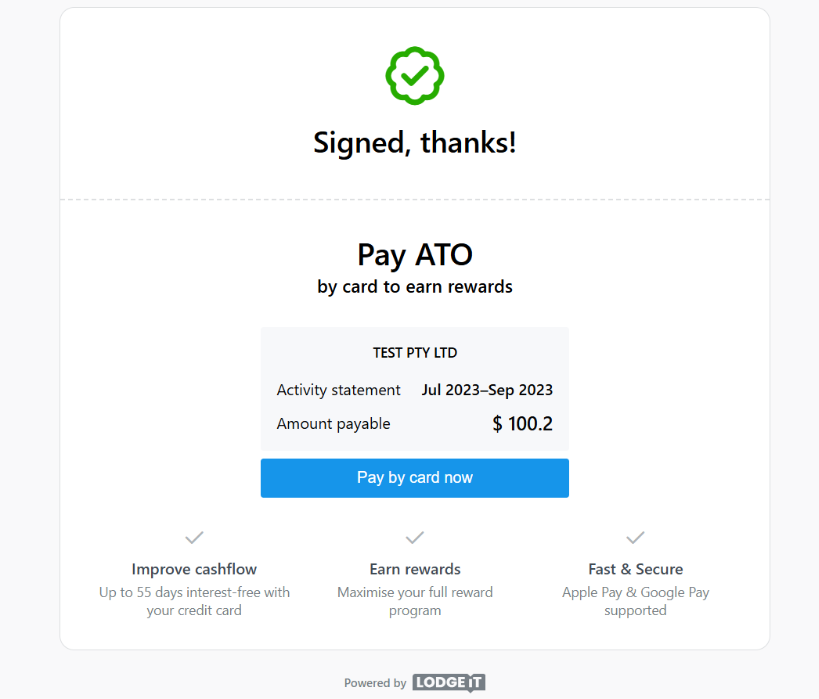
The Signed, thanks! screen shows the entity name, the Activity Statement period and the amount payable. The client selects Pay by card now.
-
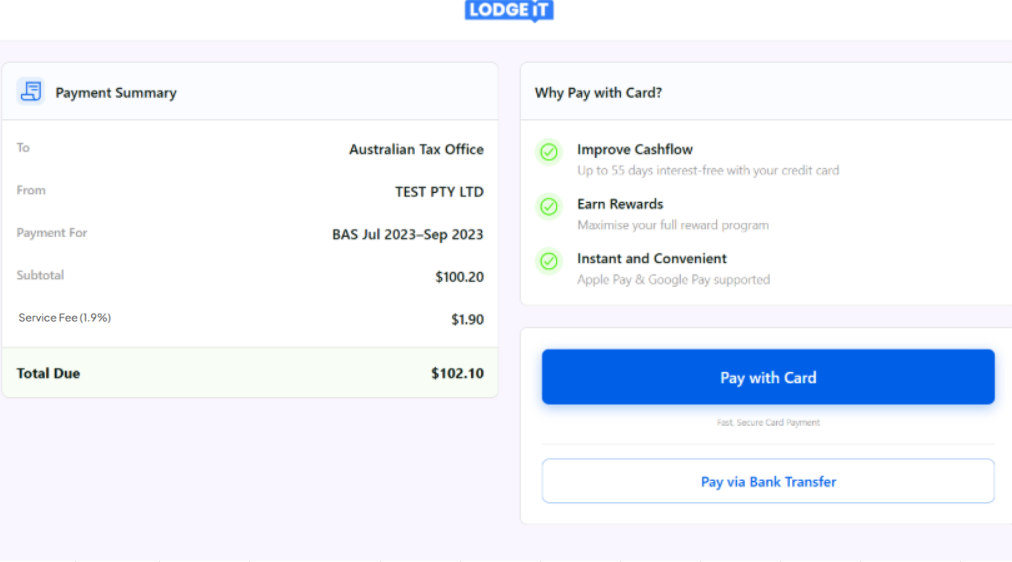
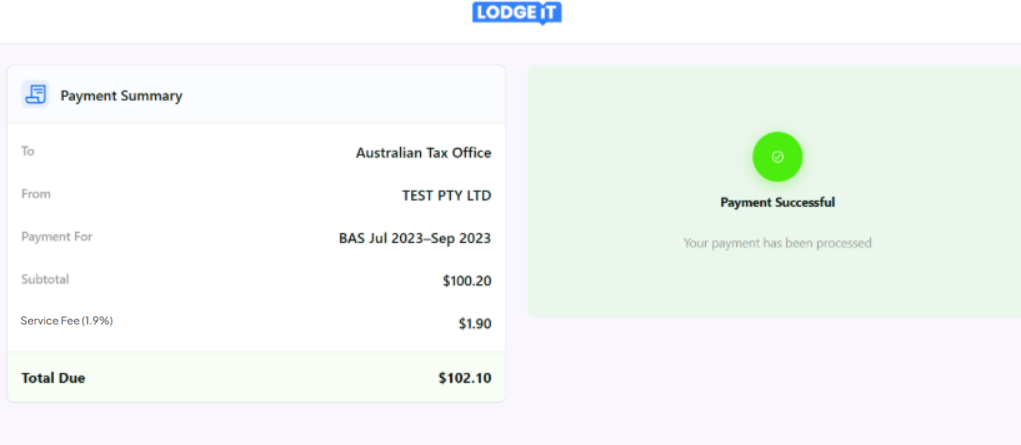
A secure payment page opens with a Payment Summary: the ATO as the payee, the entity, the period, the subtotal, the Platform Service Fee and the total due. The client selects Pay with Card.
-
When the payment goes through, the page shows Payment Successful.
The payment goes to the ATO with the client's Payment Reference Number (PRN) from the Activity Statement, so it's applied to the right ATO account. The client doesn't need to look up or enter the PRN. Funds usually reach the ATO within 3 business days.
Platform Service Fee
A Platform Service Fee of 1.9% of the amount payable covers processing the payment and sending it to the ATO. The fee is added to the ATO amount, and the client sees it on the payment page as Service Fee (1.9%) before they pay.
The Platform Service Fee is not a card surcharge. A surcharge is an extra amount charged only when someone pays by card, and it usually depends on the card. Surcharges on eftpos, Mastercard, Visa and American Express payments are no longer allowed from 1 October 2026 (RBA: card surcharging FAQs). The Platform Service Fee applies to every payment made through the platform, whichever way the client pays. It's the same for every card and network, and it isn't based on the cost of accepting cards: the platform covers card costs itself.
If a client asks about the fee, please call it the Platform Service Fee. Card payments are processed by our payment partner, Admiin.
Emails your clients receive
- After e-signing: a link to the signed Activity Statement and a Pay by card now link, if the client hasn't paid yet.
- After paying: a receipt with the subtotal, the Platform Service Fee and the total charged.
- When the funds reach the ATO: a payment confirmation.
- If the payment is declined: the reason and a link to try again.
Turn off card payments
- Open Client Defaults.
- Untick Enable card payments for Activity Statements.
- Select Save.
Clients will no longer see the payment option after they e-sign an Activity Statement.