1) Disable the Activity Statement for each client via settings (one-by-one):
To disable the automated activity statement collection feature, the agent should:
A. Go to client's "Settings", then press "Tax Returns"

B. Remove the check from the box "Manage Activity Statements"

Forms will not load if this box is unchecked.
2) Mass Disable the Activity Statement - for All Clients or for Specific Clients:
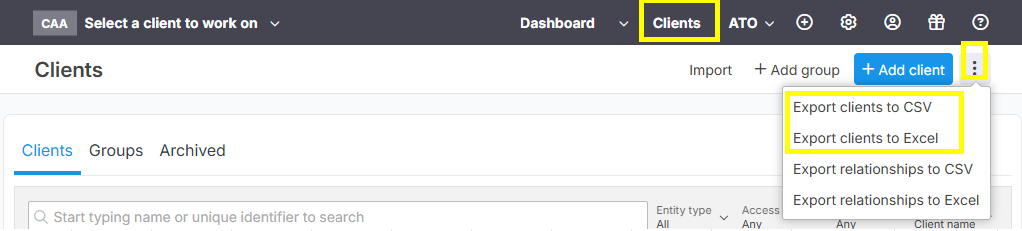
A. Export the client list first. Go to Clients. Press 3 dots icon, in the uppper right side, and select Export to Clients to CSV or Excel.
IMPORTANT REMINDER: Only retain the clients which you need to update the detail before you proceed to re-import it.
B. Open the CSV or Excel file and go to column "Manage Activity Statements". Change to letter "N" all those clients that you wanted to no automatically download

C. Save the file as as .CSV file

D. Go to Clients > Import Z and then click "Import".

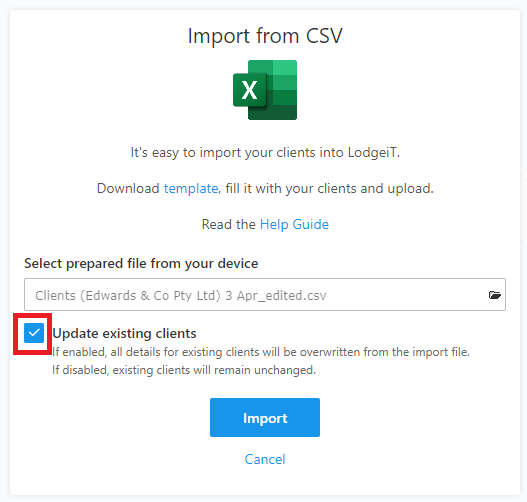
E. Ensure to tick check "Update existing clients" so that the existing clients that you need to update will be updated or overwritten.
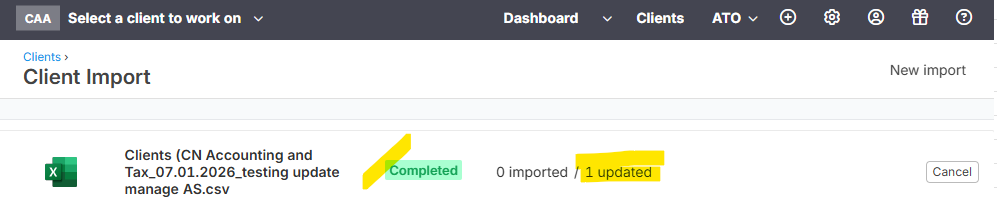
After successful importing, you should see the count of "updated" clients. Per sample image below, only 1 client was imported for update.