
Your practice organisation in Lodgeit connects to your QuickBooks Online Accountant practice file. When you activate the QuickBooks ProAdvisor benefit, Lodgeit creates this connection for you. Use this article to connect the practice file yourself, reconnect after the connection expires, or switch to a different company. To connect a client's QuickBooks file, see connect a client to QuickBooks Online.
In this article
- Before you start
- Connect your practice file
- Reconnect an expired connection
- Connect a different company
- Messages and what to do
- Common questions
- Related articles
Before you start
- Your Lodgeit user can edit clients. Without that permission, the connection page shows You cannot set accounting system.
- You have your QuickBooks Online Accountant login.
- You know which company in QuickBooks is your practice file. On the QuickBooks ProAdvisor plan, your practice organisation must stay connected to that file, not to a client's file or to Xero.
Connect your practice file
-
Select the gear icon, then select Profile.

-
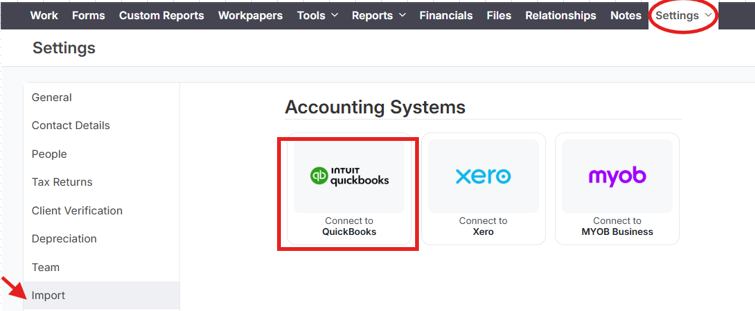
In the menu on the left, select Import. Under Accounting Systems, select Connect to QuickBooks.
- Sign in to QuickBooks with your QuickBooks Online Accountant login.
-
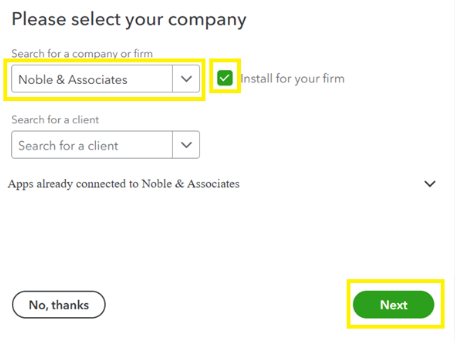
On Please select your company, choose your practice under Search for a company or firm and tick Install for your firm. Leave Search for a client empty, then select Next.
-
If Lodgeit says The connection between … and … seems to be wrong, check the QuickBooks company name. If it is your practice file, select It's correct, let's continue. If not, select Choose another company.

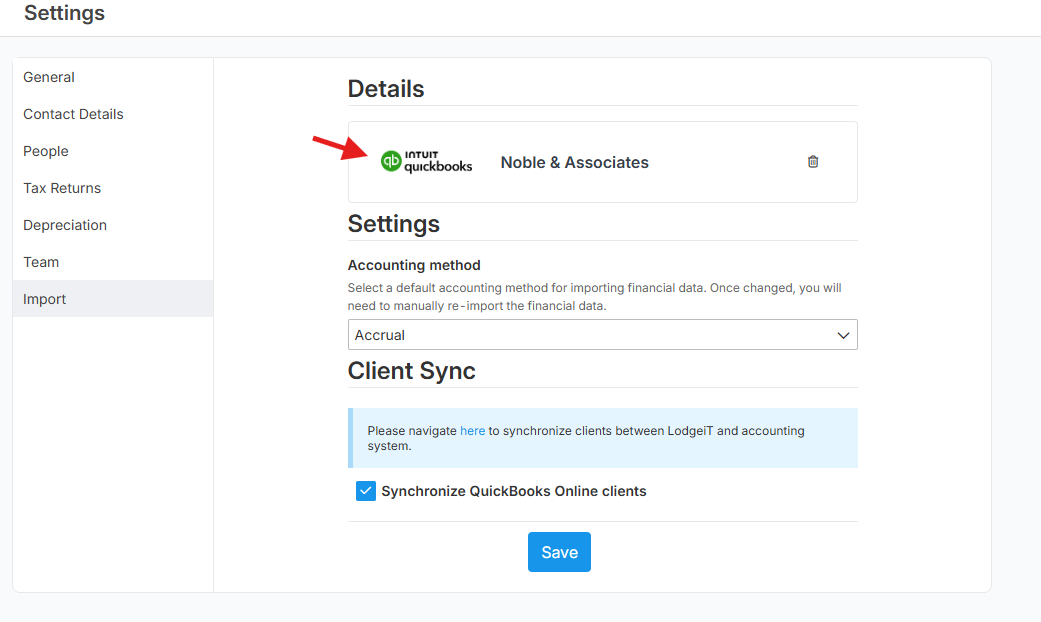
Lodgeit takes you back to the Import page, and your practice file appears under Details. Practice administrators also see Client Sync, where you can bring your QuickBooks clients into Lodgeit. See QuickBooks client sync.
If your practice is on the QuickBooks ProAdvisor plan, Lodgeit checks your ProAdvisor tier as soon as the connection changes.
Reconnect an expired connection
When the connection expires, the Import page shows The QuickBooks connection is expired. Click here to reconnect.
- Select here in that message.
- Sign in to QuickBooks with your QuickBooks Online Accountant login.
- Choose the practice file shown on the page. If you choose a different company, Lodgeit shows You've chosen the wrong organisation. To switch to a different file, connect a different company instead.
Connect a different company
Your practice organisation has one accounting connection. To switch it to a different QuickBooks company, disconnect the current one first.
On the QuickBooks ProAdvisor plan
Connect your practice file again straight after you disconnect. If your practice stays disconnected, or is connected to a client's file or to Xero, Lodgeit deactivates the plan after 24 hours.
- Go to the gear icon > Profile > Import.
-
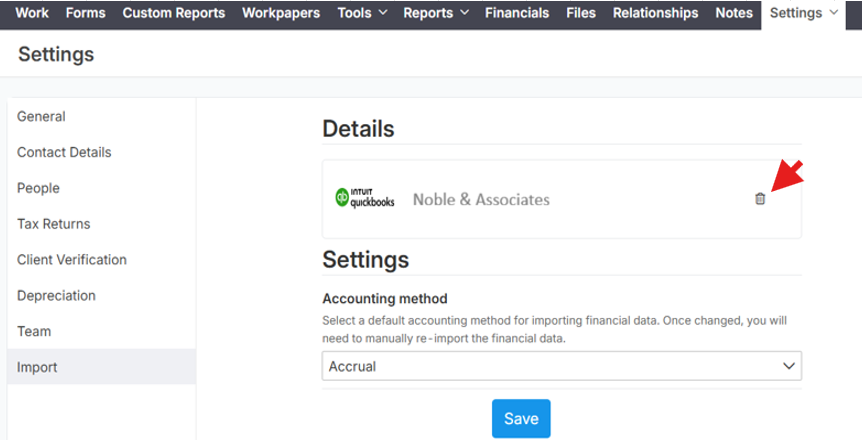
Under Details, select the bin icon, then select Disconnect to confirm. Lodgeit shows The accounting system has been disconnected.
- Follow the steps to connect your practice file from step 2.
Messages and what to do
| Message | What to do |
|---|---|
| The QuickBooks connection is expired. Click here to reconnect. | Reconnect the connection and choose the same practice file. |
| The connection between … (QuickBooks) and … (LodgeiT) seems to be wrong. Please check if you are connecting the right entities. | The QuickBooks company name is quite different from your practice name in Lodgeit. If it is your practice file, select It's correct, let's continue. If not, select Choose another company. |
| You've chosen the wrong organisation. You must connect to '…' or you can connect to another organisation on the Settings page. | While reconnecting, you chose a company other than the one already connected. Reconnect and choose the company named in the message, or connect a different company. |
| You cannot set accounting system. | Your Lodgeit user cannot edit clients. Ask a practice administrator to connect the file or to change your permissions. |
| Your … subscription will be deactivated in … | Lodgeit cannot reach your QuickBooks practice file. See fix a deactivation warning. |
Common questions
I activated the ProAdvisor benefit. Do I still need to connect my practice?
No. Activation connects your practice file for you. Come back to this article when the connection expires or when you need to switch to a different company.
Can I connect a client's QuickBooks file to my practice organisation?
No. Connect a client's file to that client's organisation in Lodgeit, as described in connect a client to QuickBooks Online. On the QuickBooks ProAdvisor plan, a client's file in your practice organisation leads to deactivation after 24 hours.
Our practice keeps its own books in Xero. What should we connect?
On the QuickBooks ProAdvisor plan, keep your practice organisation connected to your QuickBooks practice file. See use Xero for your own practice on the ProAdvisor plan.
Why does Lodgeit say the connection seems to be wrong when I chose the right file?
Lodgeit compares the QuickBooks company name with your practice name in Lodgeit. If they differ a lot, for example a trading name in one and a legal name in the other, Lodgeit asks you to confirm. If the file is right, select It's correct, let's continue.
Related articles
- Connect a client to QuickBooks Online
- QuickBooks Client Sync: bulk actions and avoiding duplicate clients
- Activate Lodgeit with the QuickBooks ProAdvisor program
- Renew, reactivate or change your QuickBooks ProAdvisor plan
- Fix QuickBooks ProAdvisor activation and renewal messages
- Use Xero for your own practice on the ProAdvisor plan