
This article lists the messages you may see when you connect your practice or a client in Lodgeit to QuickBooks Online, and what to do about each one. For messages about your QuickBooks ProAdvisor plan, see fix QuickBooks ProAdvisor activation and renewal messages.
In this article
- Messages in Lodgeit
- Messages on QuickBooks pages
- Other connection messages
- Common questions
- Related articles
Messages in Lodgeit
You do not have permission to access the resource.

Your Lodgeit user does not have the permission this action needs.
- To connect, reconnect or disconnect your practice or a client, you need Add/edit clients and groups.
- To use Client Sync, you need Access to Client Sync. To change the Client Sync settings, you also need to be a practice administrator.
A practice administrator can give you these permissions:
- Select the gear icon, then Team.
- Select the team member.
- Under Client permission, tick the permission they need.
- Select Save Member.
Resource not found.
Lodgeit cannot find the practice or client you are connecting, or your user cannot open it. Check these in order:
-
You are working in the right practice. If you belong to more than one, select the gear icon, then Switch Organisation, and choose the practice on My Organisations. Then start the connection again.

- You are in the client's team. Each client has its own team, and only its members can connect it. Ask a practice administrator to open the client, go to Settings > Team and add you.
- If the message appears when you open Client Sync, you need Access to Client Sync. See the permission steps above.
The connection has been canceled or you don't have access to the QuickBooks organisation.
QuickBooks did not finish the connection. Either someone selected Cancel on a QuickBooks page, or the QuickBooks user you signed in with cannot open that company.
- Select Back to LodgeiT.
- Start the connection again.
- Sign in to QuickBooks with a user that has access to the company. To connect a client, the client's company must be in your QuickBooks Online Accountant client list.
OAuth code is missing.
QuickBooks sent you back to Lodgeit without completing the sign-in. Start the connection again from Lodgeit. If you see this message when you sign in to Lodgeit with your Intuit account, see OAuth code is missing.
The QuickBooks connection is expired.
Lodgeit shows this in two places:
- on the connection page: The QuickBooks connection is expired. Click here to reconnect.
- on your practice dashboard, if Client Sync is on: The QuickBooks connection is expired. Please reconnect it here to continue automatically synchronizing your clients.
Select here in the message, sign in to QuickBooks and choose the same company. For the full steps, see reconnect your practice or a client.
Reconnect the practice instead of disconnecting it. Disconnecting your practice turns Client Sync off, and you have to turn it on again.
A client with the same ABN or TFN already exists.
Lodgeit shows this warning when you add a client whose ABN or TFN matches a client you already have. Go to Clients and search for the ABN or the client's name. If the client is there, open it and connect the existing client instead of adding a new one.
Messages on QuickBooks pages
These messages come from Intuit, not from Lodgeit. They appear on QuickBooks pages while you sign in or choose a company.
Sorry, there was a problem! or Uh oh, there's a connection problem

Try the connection in a private window first:
- Open a private window. In Chrome and Edge, press Ctrl+Shift+N. In Firefox, press Ctrl+Shift+P.
- Sign in to Lodgeit at go.lodgeit.net.au/signin.
- Start the connection again.
If it works in the private window, saved browser data caused the problem. Clear your browser's cookies and cache, then use your normal window again. If it still fails, contact QuickBooks support and send them a screenshot of the error and the address of the error page.
Assign yourself as an admin, or Assign new admin
QuickBooks Tax Powered by LodgeiT has one admin in each QuickBooks company. QuickBooks shows one of these screens when someone else is already that admin.
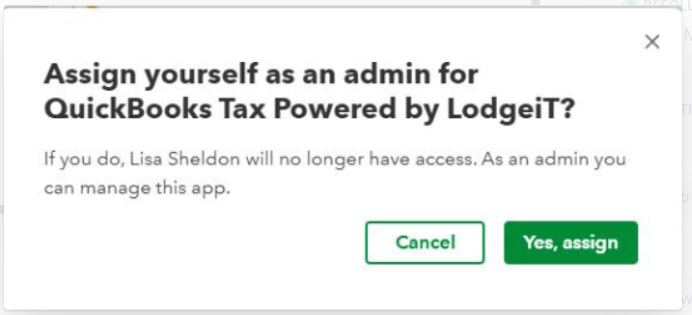
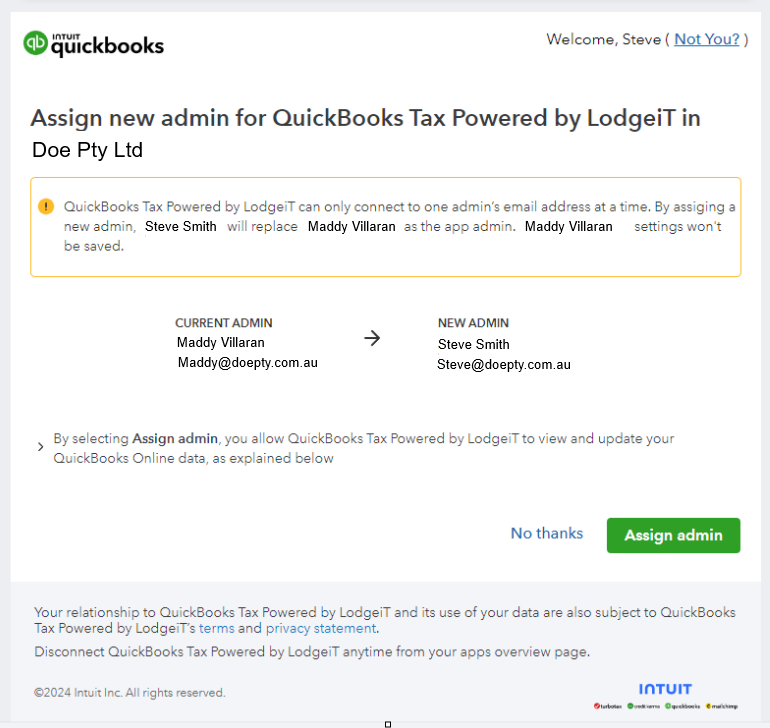
- Select Yes, assign or Assign admin to become the admin. The current admin can no longer manage the app, and QuickBooks does not keep their app settings.
- Select Cancel or No thanks to keep the current admin. Check with them before you take over.
Lodgeit cannot change app admins in QuickBooks. If you cannot change the admin, contact QuickBooks support.
Other connection messages
The connection articles explain these messages:
- The connection between … seems to be wrong and You've chosen the wrong organisation: see messages for your practice or a client.
- The client connected to the same QuickBooks organisation already exists and You cannot set accounting system.: see client connection messages.
- Messages about your ProAdvisor plan, such as a deactivation warning: see fix QuickBooks ProAdvisor activation and renewal messages.
Common questions
We moved to a new QuickBooks company and imports stopped working. What do we do?
Lodgeit is still connected to the old company. Disconnect it and connect the new one. See connect a different company for your practice or a client.
Does Client Sync stay on after I reconnect our practice?
Yes. Reconnecting keeps your Client Sync settings. If you disconnect the practice, Client Sync turns off, and you need to turn it on again after you connect.