
Overview
Before performing a bulk export from Lodgeit to QuickBooks, it is critical to first link all existing and new subscription clients. Failing to do so may cause the system to create duplicate Customer records in QuickBooks. These duplicates must later be manually unlinked and merged one by one, which can be time‑consuming.
This guide explains the correct process to sync client details between Lodgeit and QuickBooks and how to avoid duplicate customer records.
Important Reminder
⚠️ Always complete client linking before running a bulk export.
Bulk exporting clients before linking QuickBooks subscription clients can result in duplicate QuickBooks customer cards.
Select to match the client record in Lodgeit with the "placeholder" files in your QuickBooks Accountant to sync.
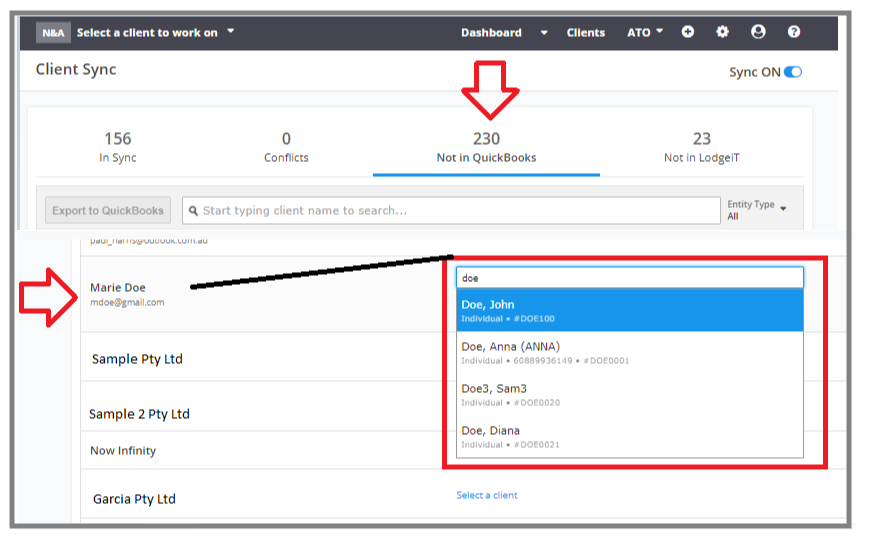
Lodgeit / QuickBooks Client Details Sync
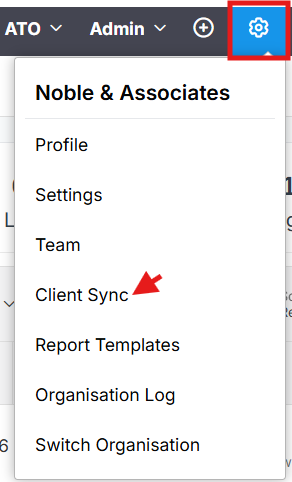
Settings (⚙️ Cog Wheel) → Client Sync
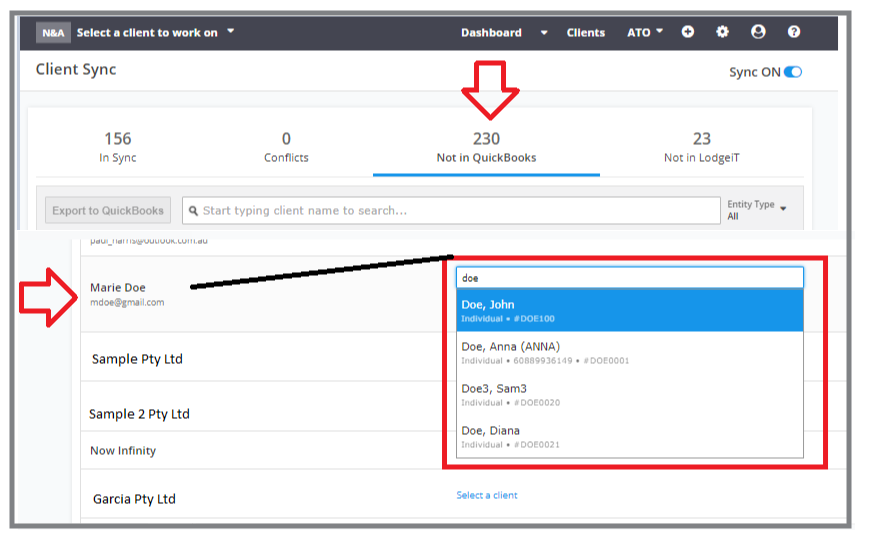
Step 1: Identify Clients Not Yet Linked to QuickBooks
Go to the “Not in QuickBooks” tab.
Locate the Lodgeit client records you wish to sync back into QuickBooks.
These clients do not yet have a matching QuickBooks Customer record.
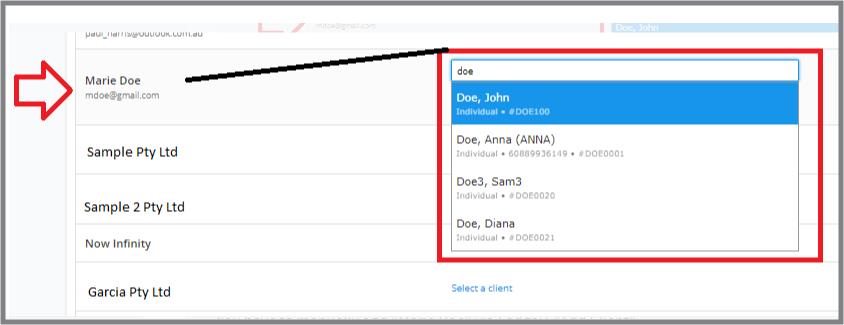
"Select a Client"
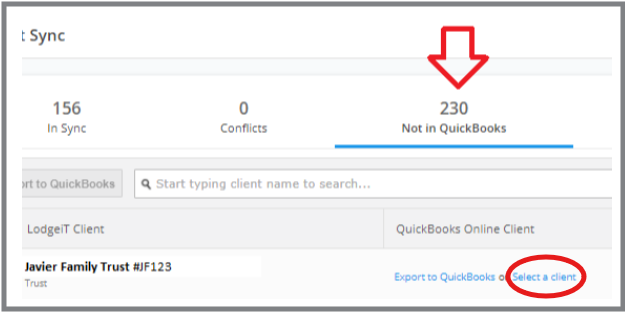
Allows you to link a Lodgeit client to an existing QuickBooks subscription client.
Useful when QuickBooks already has a customer or subscription bundle that needs to be matched or renamed.
Example use case: linking an existing subscription bundle
Once selected, the client details in Lodgeit will sync back to QuickBooks automatically.
"Export to QuickBooks"
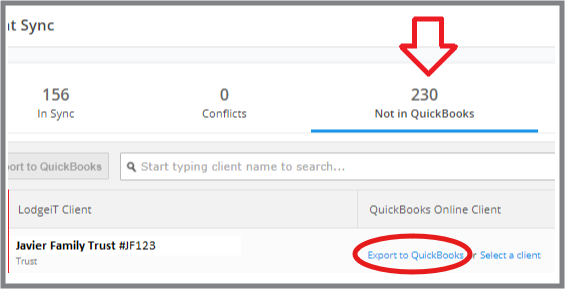
Use this option only if you want to create a new Customer record in QuickBooks .
Intended for clients without a QuickBooks subscription.
Commonly used for customers needed for invoicing purposes in QuickBooks.
⚠️ Do not use this option for subscription clients that already exist in QuickBooks.
Bulk Export
You can select multiple clients at once by using the checkbox in the top‑left corner, then choose “Export to QuickBooks” to process them in bulk.
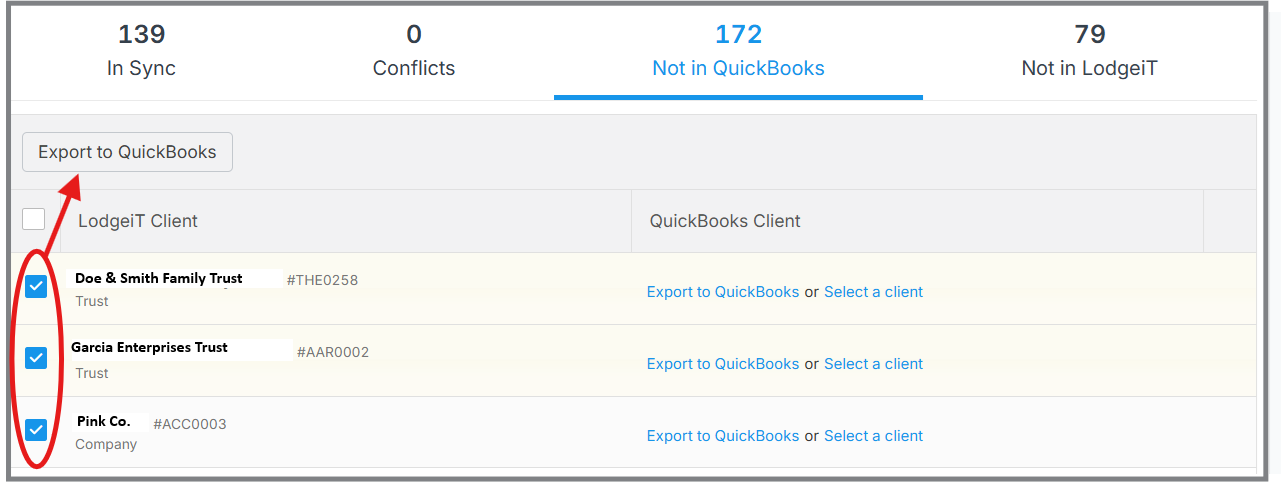
Only perform bulk exports AFTER all QuickBooks subscription clients have been properly linked.
Following this order ensures:
No duplicate QuickBooks Customer records
Clean client synchronization
Less manual correction later