
If you wish to use QuickBooks to send invoice to your client, select the client from the list and press "Export to QuickBooks" - Clients that you want to copy/sync to QuickBooks
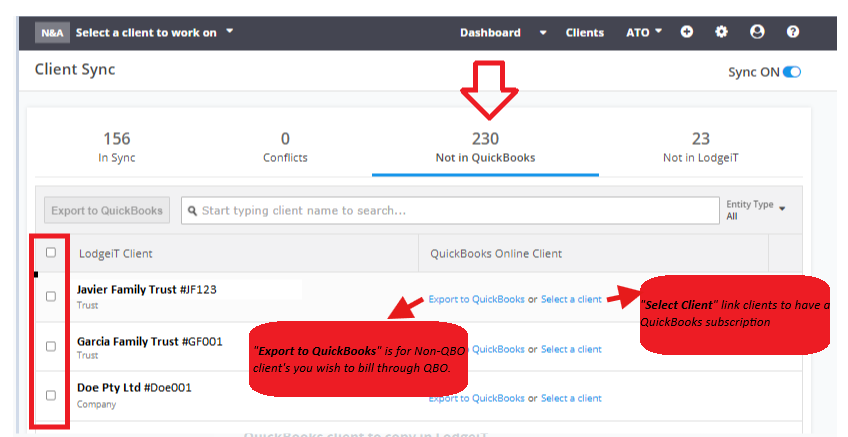
"Export to QuickBooks"
Use this option only if you want to create a new Customer record in QuickBooks.
Intended for clients without a QuickBooks subscription.
Commonly used for customers needed for invoicing purposes in QuickBooks
⚠️ Do not use this option for subscription clients that already exist in QuickBooks.
"Select a Client"
Allows you to link a Lodgeit client to an existing QuickBooks subscription client.
Useful when QuickBooks already has a customer or subscription bundle that needs to be matched or renamed.
Note:
Before performing a bulk export, ensure that all existing or new QuickBooks subscription clients are linked first. Otherwise, the system may create duplicate Customer records in QuickBooks, which would later require manual unlinking and merging one by one. Learn more
Once the connection is established and synchronization is enabled, the system automatically syncs Lodgeit clients with QuickBooks entities using a 100% name and/or email match. If no match is found, users can manually map the records.
This same process applies to exports. Lodgeit organisations listed under the “Not In QuickBooks” tab have no automatically matched QuickBooks entity and must be exported manually as needed.
This video includes:
- How to connect Lodgeit to QuickBooks
- Synchronising client details (changes from Lodgeit sync to QuickBooks)
- Manual connection/mapping of client from QuickBooks and Lodgeit.
- How to merge client in QuickBooks
- Showing how QuickBooks invoice works - Configuring client-sync is important for invoice purposes, ie client invoices have the same details as being in Lodgeit.
- Linking QuickBooks details to Lodgeit details
- Ensure that you already connect your Lodgeit firm to QuickBooks Accountant prior to synchronization. Learn more