
The video explains how to purchase an annual subscription plan in LodgeiT as a registered Tax Agent.
Note: Upgrading to a new plan while you still have unused credits on your current subscription is not recommended, as any remaining credits will not carry over. This may also lead to additional charges because you would be paying for two plans at the same time. To get the best value, we recommend reviewing your expected lodgement requirements first and choosing the plan that best meets your needs, rather than upgrading partway through your subscription. Click here for the updated Pricing guide for agent.
Video: Buy Additional lodgements and signing credits (e-signature)
TABLE OF CONTENTS
- Step 1: Open the Billing Page
- Step 2: Choose Your Subscription Plan
- Step 3: Review Your Order Details and Enter Your Payment Information
- Step 4: Confirm Your Subscription
Before you begin
Make sure you have the following details ready:
An active LodgeiT Tax Agent account.
Your Tax Agent Number (TAN).
Your practice's registered ABN.
A valid credit or debit card for payment.
Important: Ensure that your organisation is set up under the correct Practice Type – Tax Agent, with your Tax Agent Number and practice ABN correctly entered.
Purchasing your Subscription
Step 1: Open the Billing Page
Top right of your Lodgeit interface, click "Gear wheel" and select "Billing"

Step 2: Choose Your Subscription Plan
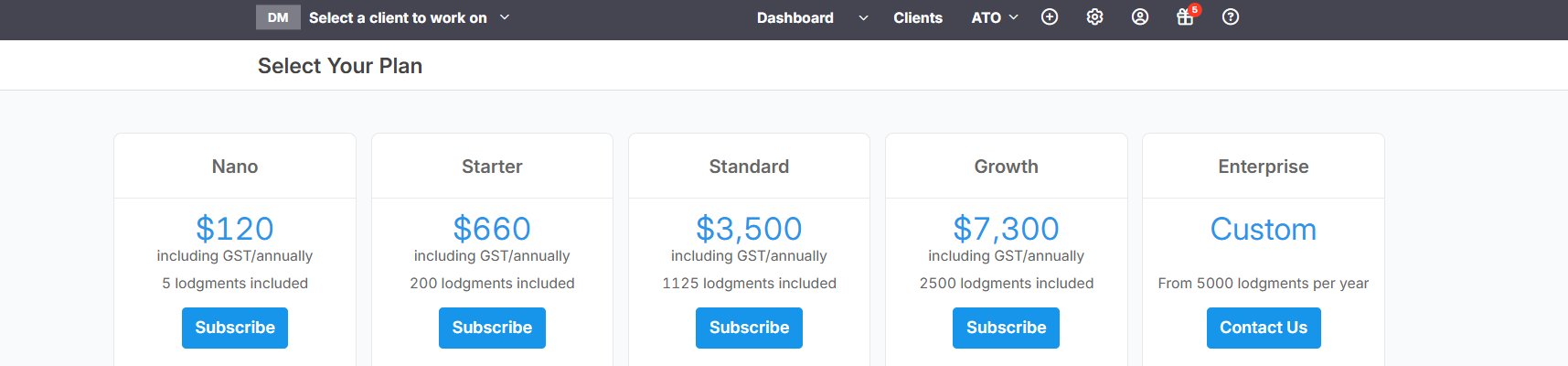
Review the available subscription plans.
Compare the plans based on the number of lodgements included and your practice's requirements.
Select the plan that best suits your firm.
Click Subscribe to proceed.
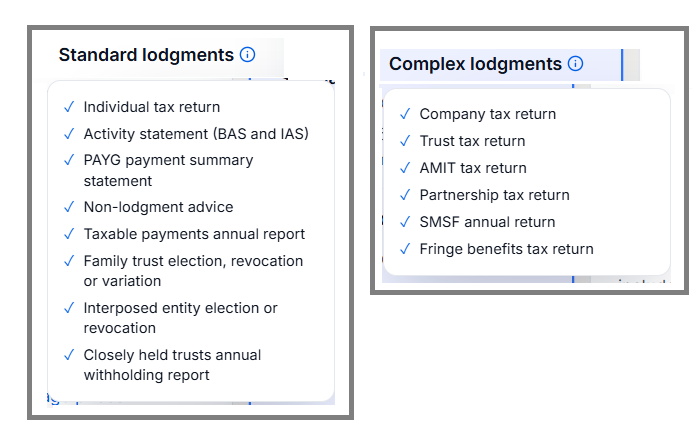
Tip: Before selecting a plan, consider the number and types of returns your practice expects to lodge throughout the subscription year.
LodgeiT categorises lodgements into Standard and Complex forms, so make sure you choose a plan that covers your expected lodgement requirements.
Step 3: Review Your Order Details and Enter Your Payment Information
Before proceeding to payment:
Carefully review the selected subscription plan.
Check the order details and subscription amount.
Enter your credit or debit card details as required.
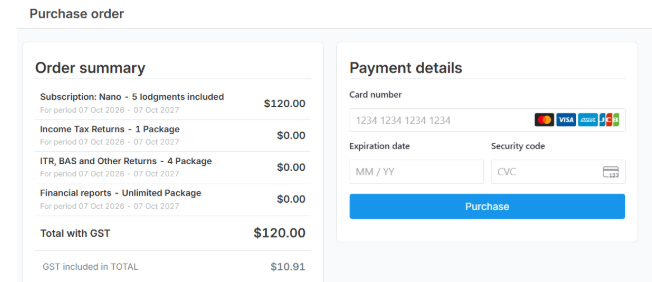
Click Pay to complete your purchase.
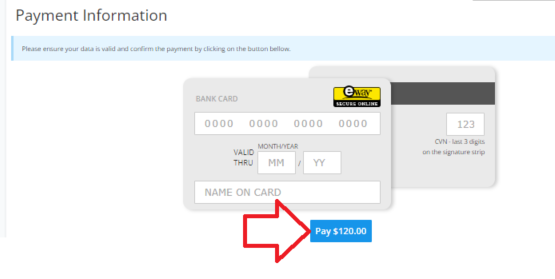
If you have a valid discount code, enter it in the Discount Code field.
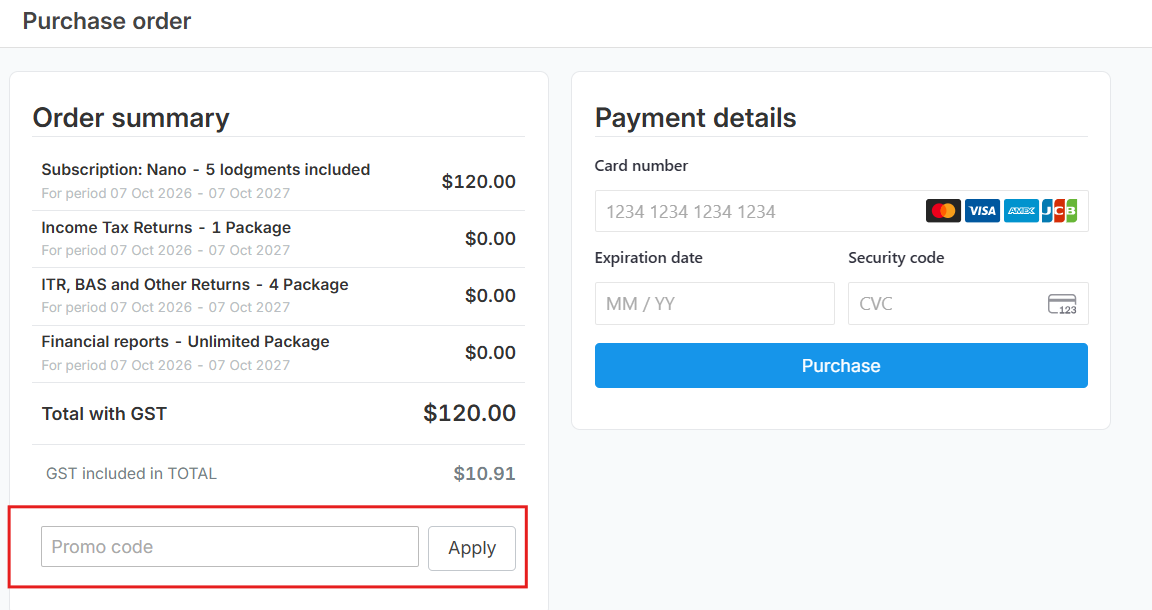
Important: Please do not close or refresh the page while your payment is being processed to avoid interrupting the transaction.
Step 4: Confirm Your Subscription
Once the payment has been successfully processed:
Your subscription will be activated.
Return to the Billing page to check your active subscription.
Review your available lodgement credits to confirm that they have been added to your account.
You can now proceed with lodging eligible forms through LodgeiT.
Important Reminders
- Annual subscription: Tax Agent subscription plans are annual.
- Choose the right plan: Review your expected Standard and Complex lodgements before purchasing.
- Unused credits: Unused lodgement credits do not carry over when changing subscription plans or when the subscription year ends.
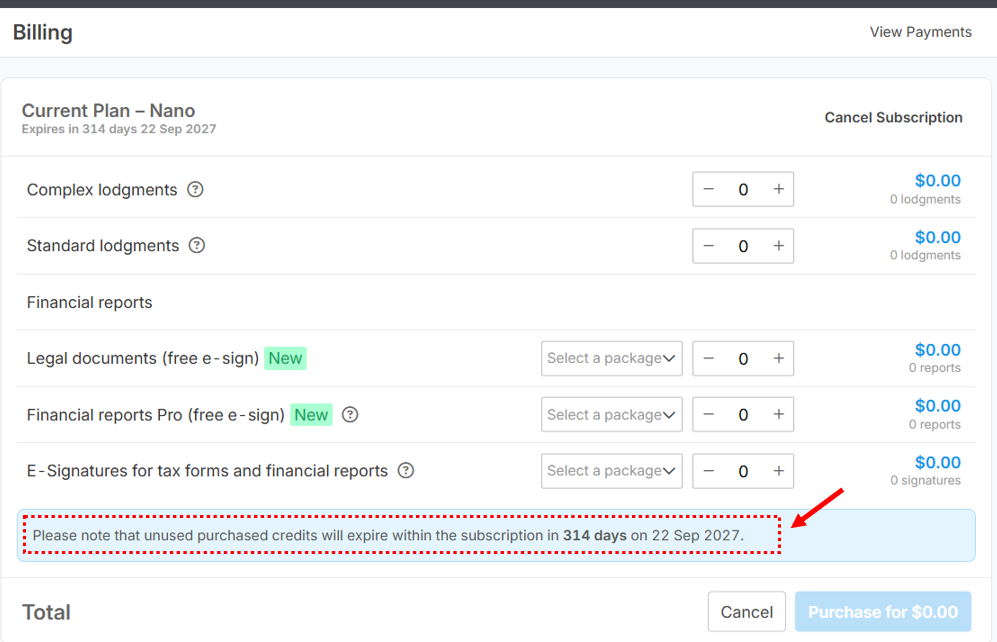
- Upgrading your plan: Purchasing another plan while your existing subscription still has unused credits is not recommended. You may lose the remaining credits and incur charges for two plans.
- E-signature credits: E-signature credits can be purchased separately once your subscription has been activated. These credits are subject to expiration and do not carry over beyond the subscription period.
- Billing access: If you cannot see the Billing option, check that you are logged in using an Admin account with the appropriate billing permissions.
Need help
If you encounter any issues while purchasing your subscription or your payment is unsuccessful, please contact the LodgeiT Support Team at support@lodgeit.net.au for assistance.
Related Articles:
How to renew a Lodgeit subscription plan
How to change a Lodgeit subscription plan
How to cancel Lodgeit subscription plan
Other Related Articles: