
With the Lodgeit Excel templates you can import a client's Profit & Loss and Balance Sheet for annual, quarterly or monthly periods, when the client's figures are not in accounting software that Lodgeit connects to. You fill in a template, upload it on the client's Financials page, and upload it again whenever the figures change.
In this article
- Before you start
- Download a template
- Prepare the import file
- Import the file
- Refresh the financials
- If the upload shows a message
- Common questions
- Related articles
Before you start
- The client is not connected to QuickBooks, Xero or MYOB Business. While it is, the Import page offers only that connection. See why Import from Excel is missing.
- The file is an Excel workbook (
.xlsx) of 1 MB or less, made from a Lodgeit template.
Download a template
Download the template for the periods you want to import:
- Lodgeit Import Template (Annual): each year column covers the financial year from 1 July to 30 June.
- Lodgeit Import Template (Quarterly)
- Lodgeit Import Template (Monthly)
The Import from Excel page in Lodgeit links to the same templates.
Prepare the import file
- In Company Name, enter the client's name.
- In the Quarterly and Monthly templates, enter the year in Financial Year, for example
2026for the year ending 30 June 2026. The period columns fill in automatically. The Annual template has no Financial Year: its year columns are headed with the 30 June date of each year, and you can change these dates. -
Add the client's accounts under the right group, such as Trading Revenue, Direct Costs or Current Assets. To add a row, insert it above the ↑ Insert Row Above ↑ line of that group.

- Enter the amounts for every period, for both the Profit & Loss and the Balance Sheet. Leave the total rows as they are: the template and Lodgeit calculate them.
Keep the template layout
Do not rename or delete the labels and groups, such as Company Name:, Frequency:, PROFIT & LOSS, BALANCE SHEET, Account Name or the total rows, and do not paste a report from other software over the template. Lodgeit reads the file by these labels, and a changed layout fails or imports figures into the wrong place.
Each account name can appear only once in the file. You can add more period columns, as long as every column covers a period of the same length and its heading is the end date of that period.
Import the file
-
In Lodgeit, select the client you want to import financials for.

-
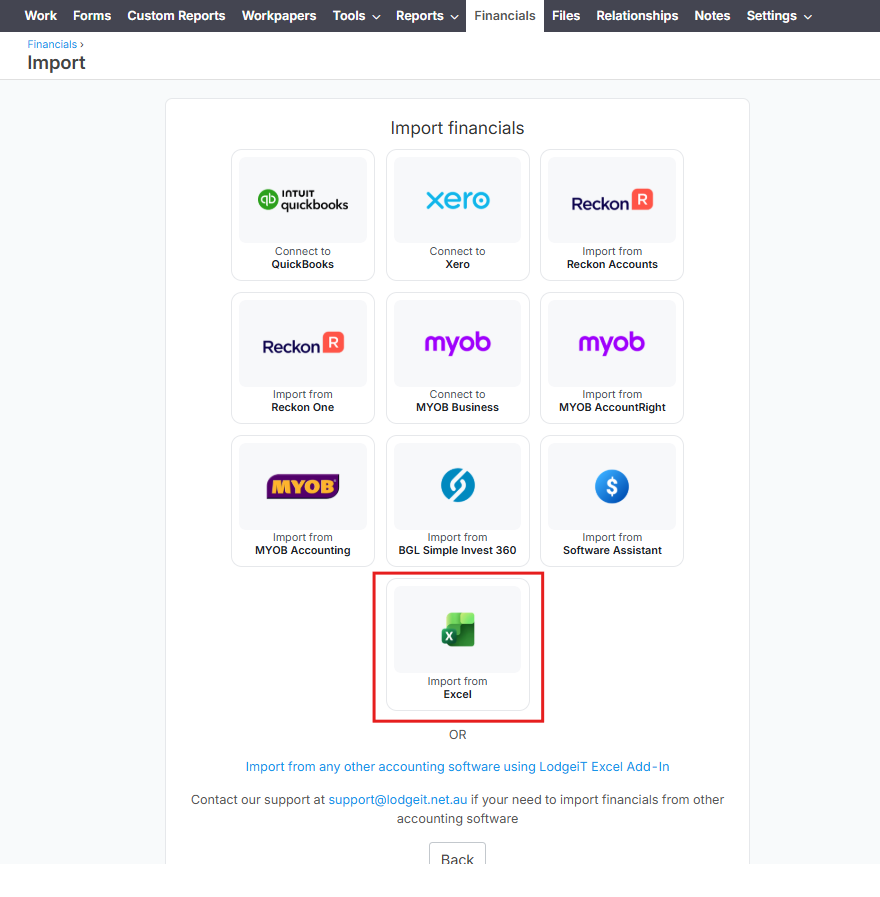
Open Financials, then on the Import financials page select Import from Excel.
-
Select Choose File, select the prepared Excel file, then select Upload.

Lodgeit opens the Financials page at the latest imported period. Check how the accounts are mapped before you prepare a form. See Chart of Accounts and Mapping.
Examples by entity type
- Excel import - Company Tax Return
- Excel import - Partnership (video)
- Excel import - Trust
- Excel import - Sole Trader, with a video
Refresh the financials
To change imported figures, correct the Excel file and upload it again in the same way. Lodgeit replaces the figures it imported from Excel for the periods in the file. Periods that are not in the file stay as they are.
If the upload shows a message
| Message | What to do |
|---|---|
| The following account names has duplicates: … Please rename accounts and make sure that each account name is unique per file. | Rename the accounts the message lists so that each name appears once, then upload again. |
| The specified financials must have the same period. It can be either Annual, Quarter or Month. | A period column does not match the template's frequency, often after a column was added or a heading changed. Check that every column heading is the end date of a period of the same length, or start again from a fresh template. |
| Each Profit & Loss statement must have a paired Balance Sheet for the same period. | Enter Balance Sheet figures for every period that has Profit & Loss figures, and check that the BALANCE SHEET section is still in the file. |
| The specified financials are empty. | The file has no amounts in the account rows. Check that the amounts are in the account rows, not only in the total rows. |
| The '…' doesn't have a valid format. | Lodgeit could not find the template layout, often because the file is a report exported from other software, or a label was renamed or deleted. Copy the figures into a fresh template, as values only, and upload that file. |
| The specified file '…' is not Excel file. | Save the file as an Excel workbook (.xlsx) and upload it again. |
| The file '…' exceeds the maximum size limit of 1 MB. | Remove extra sheets, pictures and unused rows from the file, or split the periods into several files. |
Seeing a different message?
Contact support and attach the Excel file and a screenshot of the message.
Common questions
Why is Import from Excel missing on the Import page?
The client is connected to QuickBooks, Xero or MYOB Business, so the Import page offers only that connection. To use Excel instead, open the client's Settings, select Import, and disconnect the accounting software with the bin icon. Then open Financials and import from Excel.
Figures appear in the wrong group or do not reach the tax form. What should I check?
Check the account mapping in Chart of Accounts and Mapping. Also check that each account sits in the right group of the template and that no total row was overwritten, then upload the file again.
Is this the same as the Lodgeit Excel Add-In?
No. The templates in this article need no installation. The Lodgeit Smart Excel Utility (LSU), shown on the Import page as the Lodgeit Excel Add-In, converts reports from other accounting software. See Lodgeit Smart Excel Utility (LSU) Installation.
I uploaded the file on the Files page. Why are there no financials?
The Files page only stores documents. Import the file from Financials, as described in Import the file.