TABLE OF CONTENTS
- Add Partner by adding it as client in Lodgeit
- Add Partner by direct manual input in the tax form (partner is not added as client)
1. Add Partner by adding it as client in Lodgeit:
a. Add the partner first as client in Lodgeit. Please follow this guide - Add related entities / Adding Client
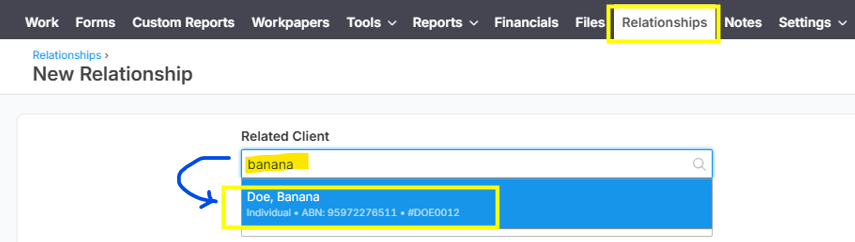
b. After adding the partner as client, go to the "Relationships" section and then search for the client name under the "Related Client" field (e.g. is Doe, Banana) and then click the name of the correct client that showed during the client search.
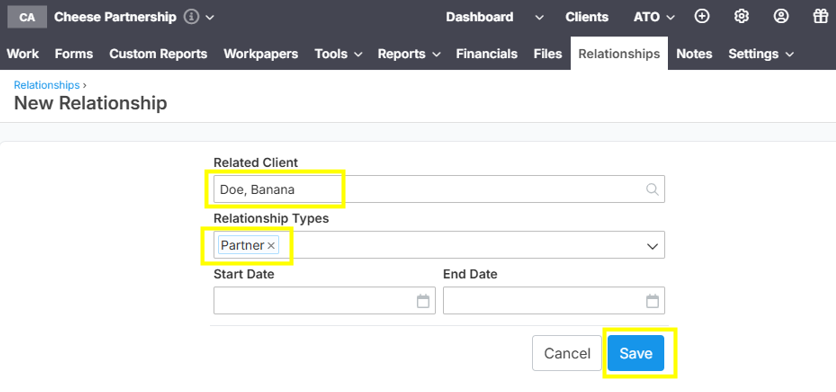
Once the client is selected, update the "Relationship" type by selecting "Partner" among the dropdown list options. Click the "Save" button.
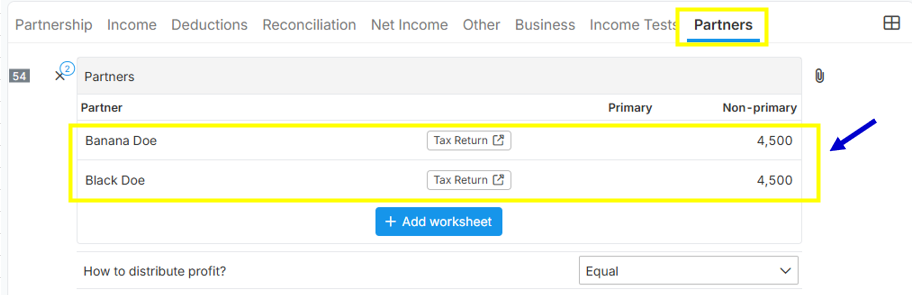
c. Once you have added the partner/s in the Relationships section. It will automatically create and show a worksheet in Partners section. Below is the guide showing partners automatically added in the PTR form.
2. Add Partner by direct manual input in the tax form (partner is not added as client):
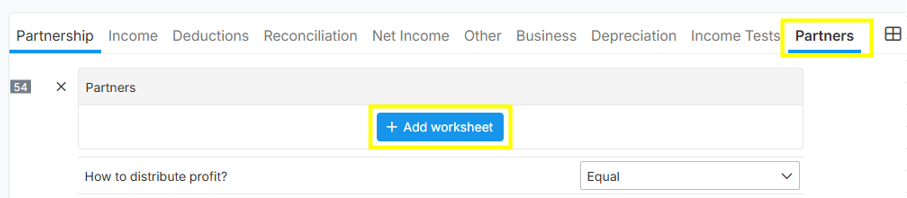
a. Go to "Partners" section and then click "Add worksheet" to directly add a partner in the partnership tax form without adding it as a client.
a.1 If the partner is an Individual please select "YES" in the line item question "Is partner individual?" and manually fill-up all the necessary details of the partner.
a.2 If the partner is an not an individual, please select "NO" in the line item question "Is partner individual?" and manually fill-up all the necessary details of the partner. 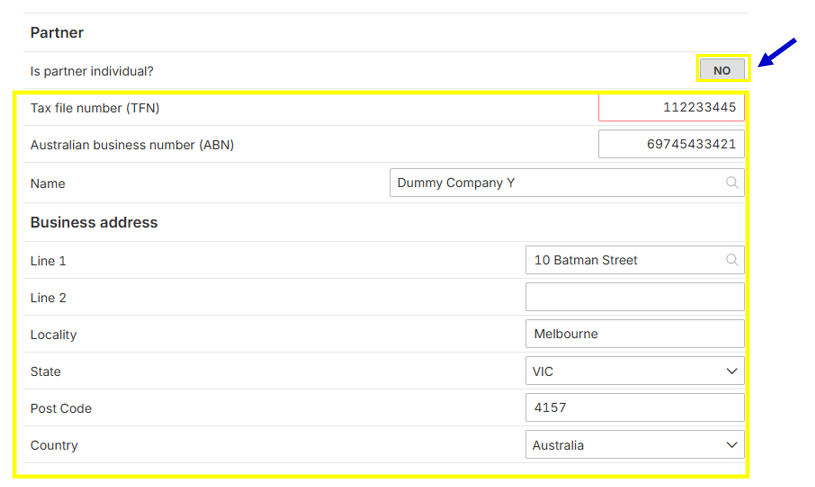
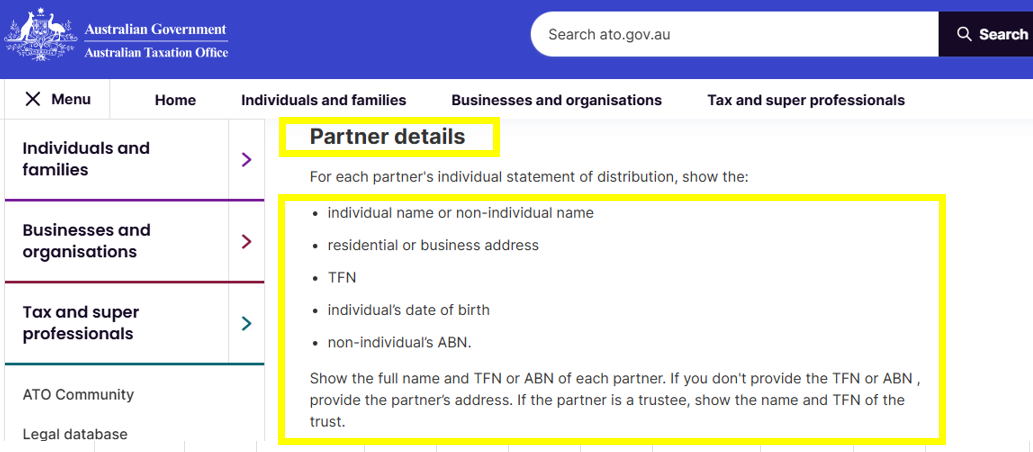
ATO related reference - https://www.ato.gov.au/forms-and-instructions/partnership-tax-return-2025-instructions/instructions-to-complete-the-partnership-tax-return-2025/statement-of-distribution-item-54